

How to Start and Stop an AKS Cluster
Introduction
Azure Kubernetes Service (AKS) is a managed Kubernetes service that simplifies the deployment, management, and scaling of containerized applications. While AKS offers significant scalability and performance benefits, running an AKS cluster 24/7 can result in unnecessary costs, especially during off-peak hours or when the cluster is not in use.
To address this, Azure provides the ability to start and stop AKS clusters, enabling cost savings. This article will guide you through the process of starting and stopping an AKS cluster using the Azure CLI, along with insights into key features, advantages, disadvantages, best practices, and troubleshooting steps.
Why Start and Stop an AKS Cluster?
Stopping an AKS cluster shuts down the cluster’s resources, including its virtual machines (VMs), while retaining the configuration and state. This allows you to save costs without losing data or needing to reconfigure the cluster.
Prerequisites
- An active Azure account.
- An existing Azure Kubernetes Service (AKS) cluster.
- Azure CLI installed on your local machine or access to the Azure Cloud Shell.
How to Start and Stop an AKS Cluster
Step 1: Install and Update the AKS Preview Extension
To use the start and stop functionality, you need the AKS Preview Extension in the Azure CLI.
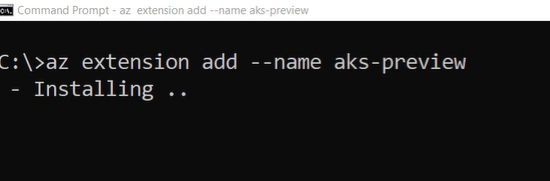
- Install the AKS Preview Extension:
az extension add --name aks-preview
- Update the Extension to the Latest Version:
az extension update --name aks-preview
Step 2: Register the Start/Stop Preview Feature
The start and stop functionality is part of the preview feature in AKS.
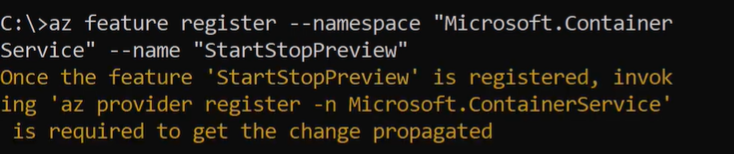
- Register the Start/Stop Preview Feature:
This registration process may take a few minutes.
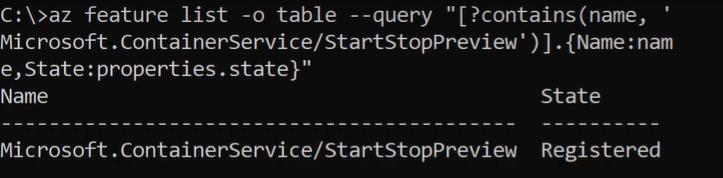
- Verify the Feature Registration:
az feature list -o table --query "[?contains(name,'Microsoft.ContainerService/StartStopPreview')].{Name:name, State:properties.state}"
- Refresh the Container Resource Provider:
az provider register --namespace Microsoft.ContainerService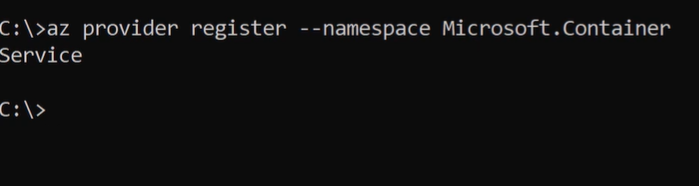
Step 3: Stop the AKS Cluster
Use the following command to stop your AKS cluster:
- Replace
YOUR_CLUSTER_NAMEwith the name of your AKS cluster. - Replace
YOUR_RESOURCE_GROUPwith the name of the resource group that contains your AKS cluster.
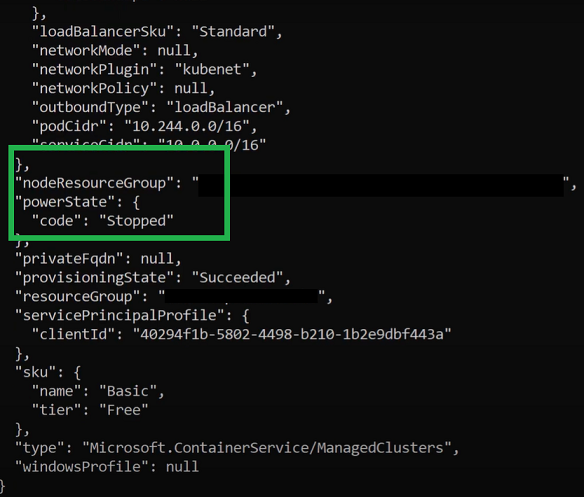
Step 4: Verify the Cluster’s Power State
Check the status of the cluster to confirm it has been stopped:
If the cluster is successfully stopped, the output will display:
Step 5: Start the AKS Cluster
To start the cluster again, use the following command:
Step 6: Verify the Cluster is Running
Check the cluster’s status to ensure it is running:
If the cluster is running, the output will display:
Key Features of Starting and Stopping AKS Clusters
- Cost Savings:
Stop clusters when not in use to reduce compute costs. - Preserved Configuration:
Retains the cluster’s configuration, state, and data even when stopped. - Ease of Use:
Simple commands via Azure CLI make starting and stopping clusters quick and efficient. - Automation Support:
Can be integrated into automation scripts to manage clusters based on usage patterns.
Advantages of Starting and Stopping AKS Clusters
- Cost Efficiency:
Pay only for the resources you use by stopping clusters during downtime. - Flexibility:
Easily start clusters during peak hours and stop them when they are not needed. - Environment Preservation:
Maintain all cluster settings and configurations while stopping the underlying resources. - Automation Capabilities:
Use Azure CLI or automation tools like Azure DevOps or PowerShell to schedule start/stop commands.
Disadvantages of Starting and Stopping AKS Clusters
- Downtime During Transition:
The cluster will not be accessible while starting or stopping. - Limited Preview Feature:
As of now, this feature may require enabling preview functionality, which could involve additional steps. - Time to Restart:
Starting a stopped cluster can take several minutes, which may impact quick response needs.
Best Practices
- Schedule Cluster Management:
Use automation scripts or Azure Logic Apps to schedule start/stop actions based on business hours. - Monitor Resource Usage:
Regularly monitor the utilization of your AKS cluster to identify when it can be stopped. - Test the Workflow:
Ensure all workloads and applications work seamlessly after starting the cluster. - Set Alerts:
Configure Azure Monitor alerts to notify you about the cluster’s status and ensure there are no unexpected downtimes.
Troubleshooting Steps
1. AKS Start/Stop Commands Not Working
- Ensure the AKS Preview Extension is installed and updated.
- Verify that the StartStopPreview feature is registered:
2. Cluster Status Not Updating
- Refresh the Azure Container Resource Provider:
3. Long Start-Up Times
- Check cluster node configurations for potential delays.
- Verify network configurations to ensure no bottlenecks.
4. Automation Errors
- Verify that Azure CLI commands are correctly integrated into your automation scripts.
- Use Azure Monitor logs to debug automation failures.
Conclusion
Starting and stopping Azure Kubernetes Service (AKS) clusters is a powerful feature that enables organizations to save costs without losing the cluster’s configuration and data. Whether you’re running a production workload or a development environment, this capability can optimize resource usage effectively.
By following the steps outlined in this article, you can easily manage the lifecycle of your AKS clusters. For further automation, integrate these commands into CI/CD pipelines or schedule them using tools like Azure Automation or PowerShell scripts.
For more details, visit the official Azure Kubernetes Service documentation.