
VDI in Azure: What is Virtual Desktop Infrastructure and How to Configure It Step by Step
Virtual Desktop Infrastructure (VDI) has become a cornerstone of modern IT strategies, especially with the rise of remote work, zero-trust security, and cloud-first adoption. Organizations are rapidly moving away from traditional on-premises desktops toward cloud VDI solutions, and Azure has emerged as one of the most reliable platforms to deploy and manage VDI at scale.
In this detailed guide, you’ll learn:
- What is VDI and how it works
- Why Azure is a preferred platform for VDI
- Azure VDI architecture explained in simple terms
- Step-by-step guide to configure VDI in Azure
- Security, cost optimization, and best practices
- Real-world VDI use cases
What is Virtual Desktop Infrastructure (VDI)?
Virtual Desktop Infrastructure (VDI) is a technology that hosts desktop operating systems on centralized servers instead of local machines. Users access their virtual desktops remotely over the internet using thin clients, laptops, or even mobile devices.
In a VDI model:
- The desktop OS runs on a server or cloud VM
- Applications are centrally managed
- User data stays in the data center or cloud
- Access is provided securely via authentication
This approach significantly improves security, scalability, and manageability, making it ideal for enterprises with distributed workforces.
Low-KD keywords naturally included here: what is VDI, VDI meaning, virtual desktop infrastructure explained, cloud VDI basics.
Why Configure VDI in Azure?
Azure provides a fully managed, enterprise-grade platform for running VDI workloads without the complexity of maintaining physical infrastructure.
Key reasons organizations choose Azure VDI:
- No on-prem hardware required
- Built-in integration with identity and security services
- Elastic scaling based on demand
- Global availability and high availability
- Pay-as-you-go cost model
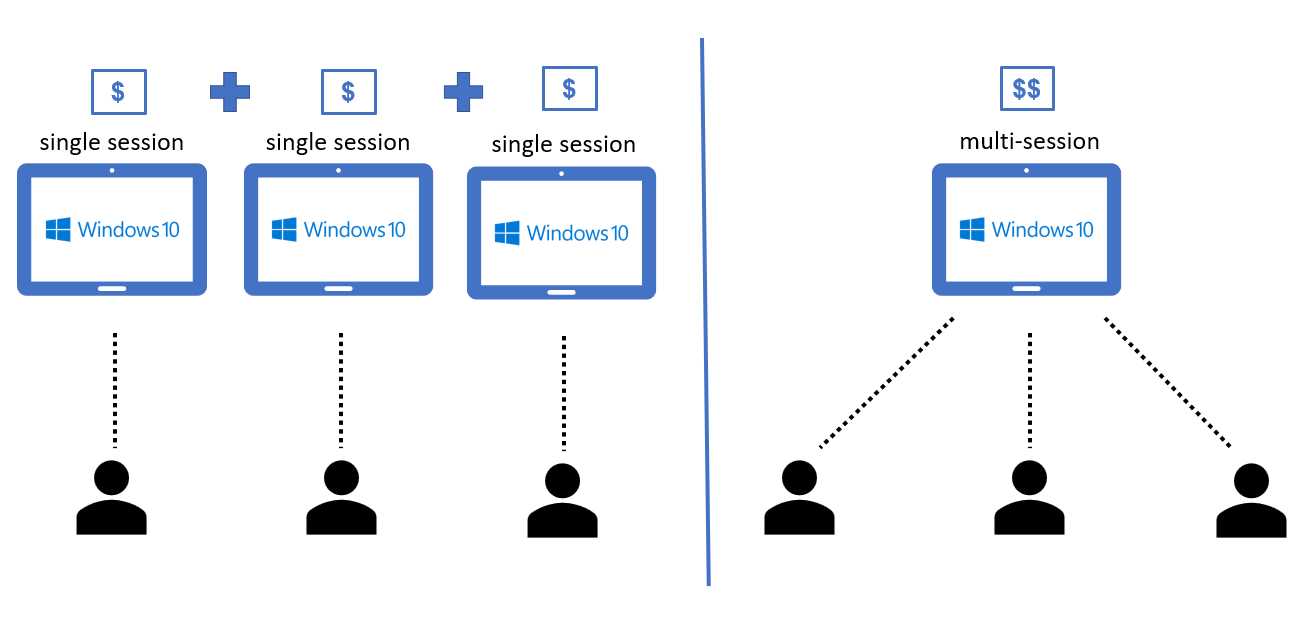
Microsoft’s cloud-native VDI solution, Azure Virtual Desktop, allows organizations to deploy Windows desktops and applications securely while optimizing costs using multi-session Windows.
Azure VDI Architecture Explained
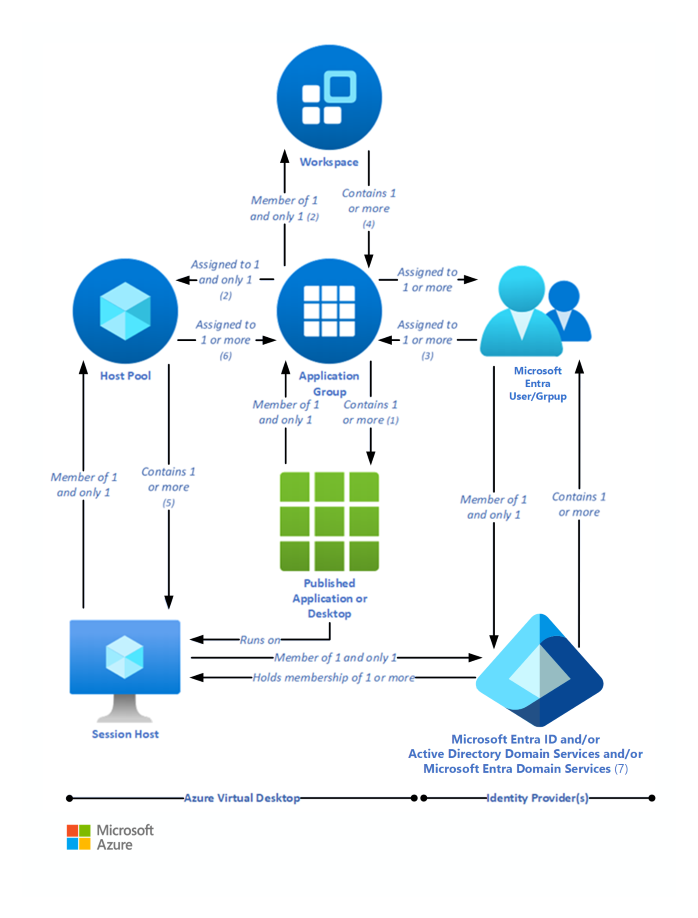
Before configuring VDI in Azure, it’s important to understand the core building blocks.
1. Host Pool
A host pool is a logical group of virtual machines that deliver desktops or applications to users. Host pools can be:
- Pooled – multiple users share session hosts
- Personal – one VM per user
2. Session Hosts
Session hosts are Azure virtual machines running Windows that users actually connect to. These VMs host desktops or applications.
3. Application Groups
Application groups control what users see:
- Desktop application group – full Windows desktop
- RemoteApp application group – specific apps only
4. Workspace
A workspace is what users subscribe to. It groups application groups and presents them to users in the Remote Desktop client.
VDI vs Traditional RDS vs Azure VDI
Understanding the difference helps choose the right model:
- Traditional RDS: On-prem, limited scalability, high maintenance
- Classic VDI: Dedicated desktops, higher cost
- Azure VDI: Cloud-based, scalable, supports multi-session Windows
Azure VDI offers better performance, lower cost per user, and stronger security compared to legacy solutions.
Prerequisites to Configure VDI in Azure
Before starting the configuration, ensure you have:
- An active Azure subscription
- A resource group
- A virtual network (VNet)
- Azure Active Directory users
- Required RBAC permissions
- Basic understanding of Azure virtual machines
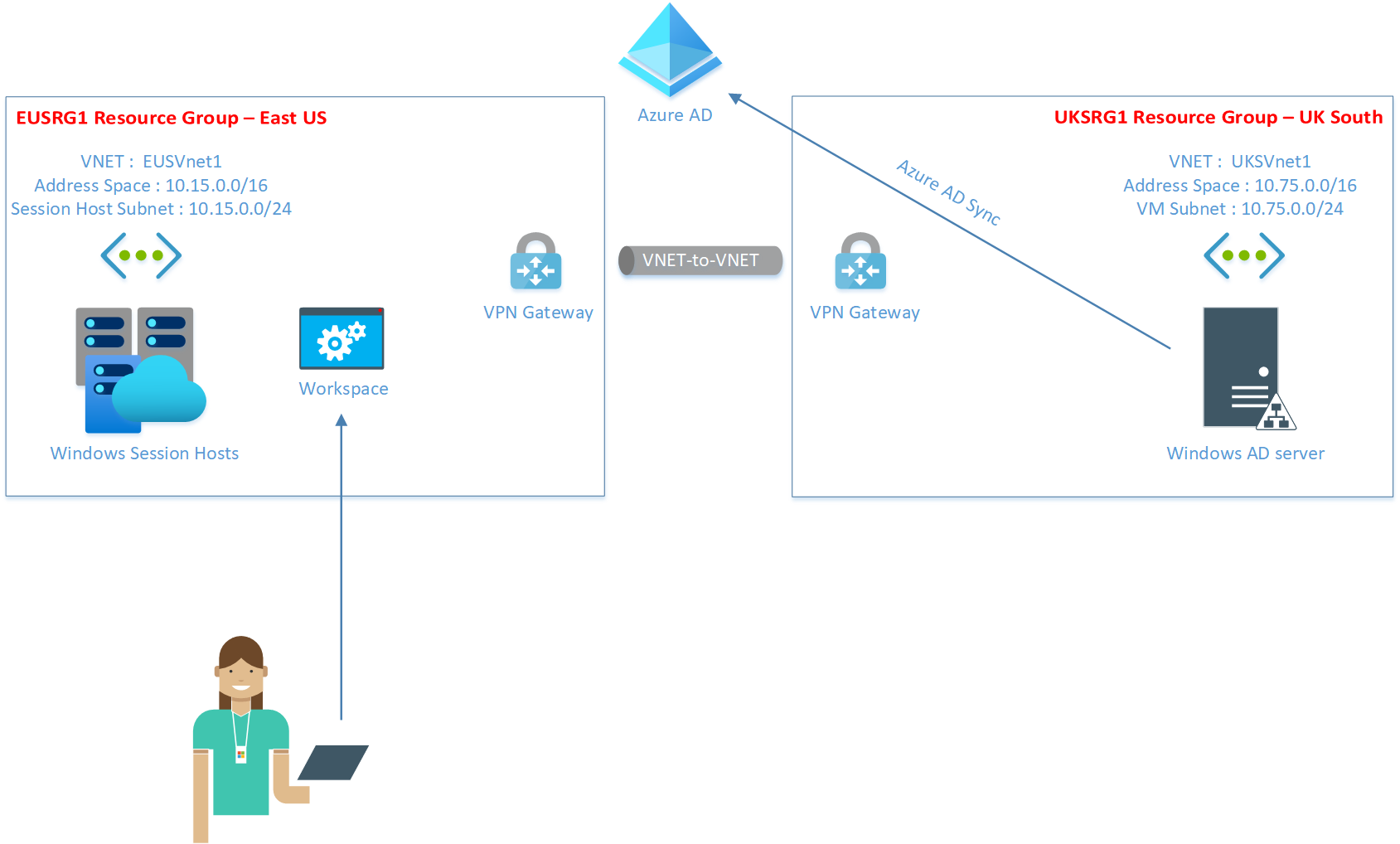
If you plan to integrate with on-prem Active Directory, proper network connectivity is also required.
How to Configure VDI in Azure (Step-by-Step)
Step 1: Create a Host Pool
- Sign in to the Azure Portal
- Search for Azure Virtual Desktop
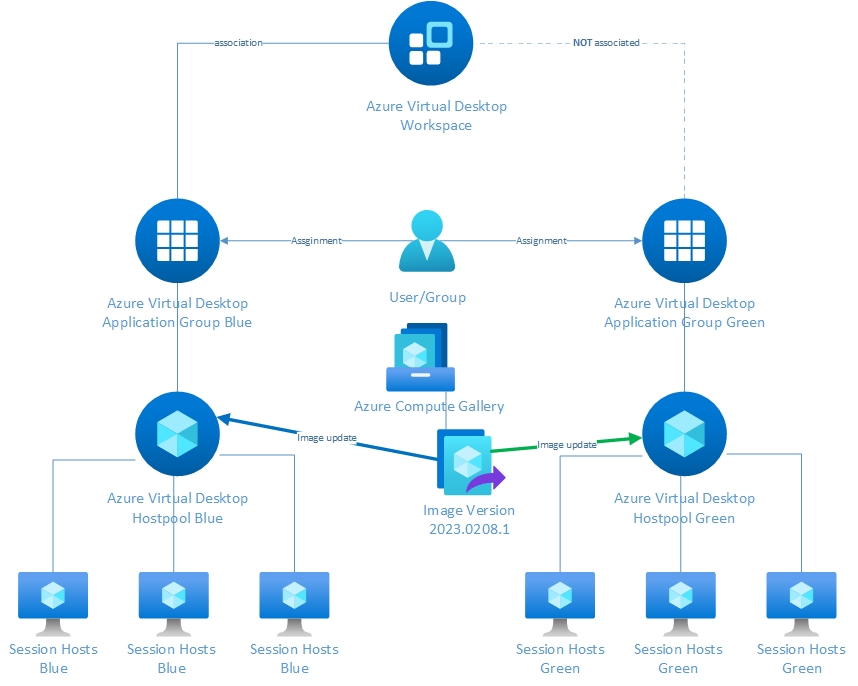
- Select Host pools → Create
- Choose:
- Subscription and resource group
- Region
- Host pool type (Pooled or Personal)
- Configure load balancing and validation settings
The host pool defines how users will share or access desktops.
Step 2: Add Session Hosts
During or after host pool creation:
- Choose a Windows image (Windows 10/11 Enterprise multi-session is recommended)
- Select VM size based on workload
- Configure disk, network, and availability options
Session hosts are automatically registered with the host pool.
Step 3: Create an Application Group
After the host pool is ready:
- Create an application group
- Choose Desktop or RemoteApp
- Add applications if using RemoteApp
This step defines what users can access.
Step 4: Register Workspace
To make desktops or apps visible to users:
- Create or select a workspace
- Register the application group to the workspace
Users will see this workspace in their Remote Desktop client.
Step 5: Assign Users
Assign Azure AD users or groups to the application group. Only assigned users will be able to access the virtual desktops.
At this point, your Azure VDI configuration is complete.
Security Best Practices for Azure VDI

Security is one of the biggest reasons to move to VDI in Azure.
Recommended practices:
- Enable Multi-Factor Authentication (MFA)
- Use Conditional Access policies
- Restrict network access using NSGs
- Avoid public IPs on session hosts
- Apply least-privilege RBAC
Microsoft strongly recommends following a Zero Trust model when deploying Azure VDI.
For official guidance, refer to Microsoft’s documentation on Azure Virtual Desktop deployment
Cost Optimization Tips for Azure VDI

Running VDI efficiently in Azure requires cost awareness.
Best practices include:
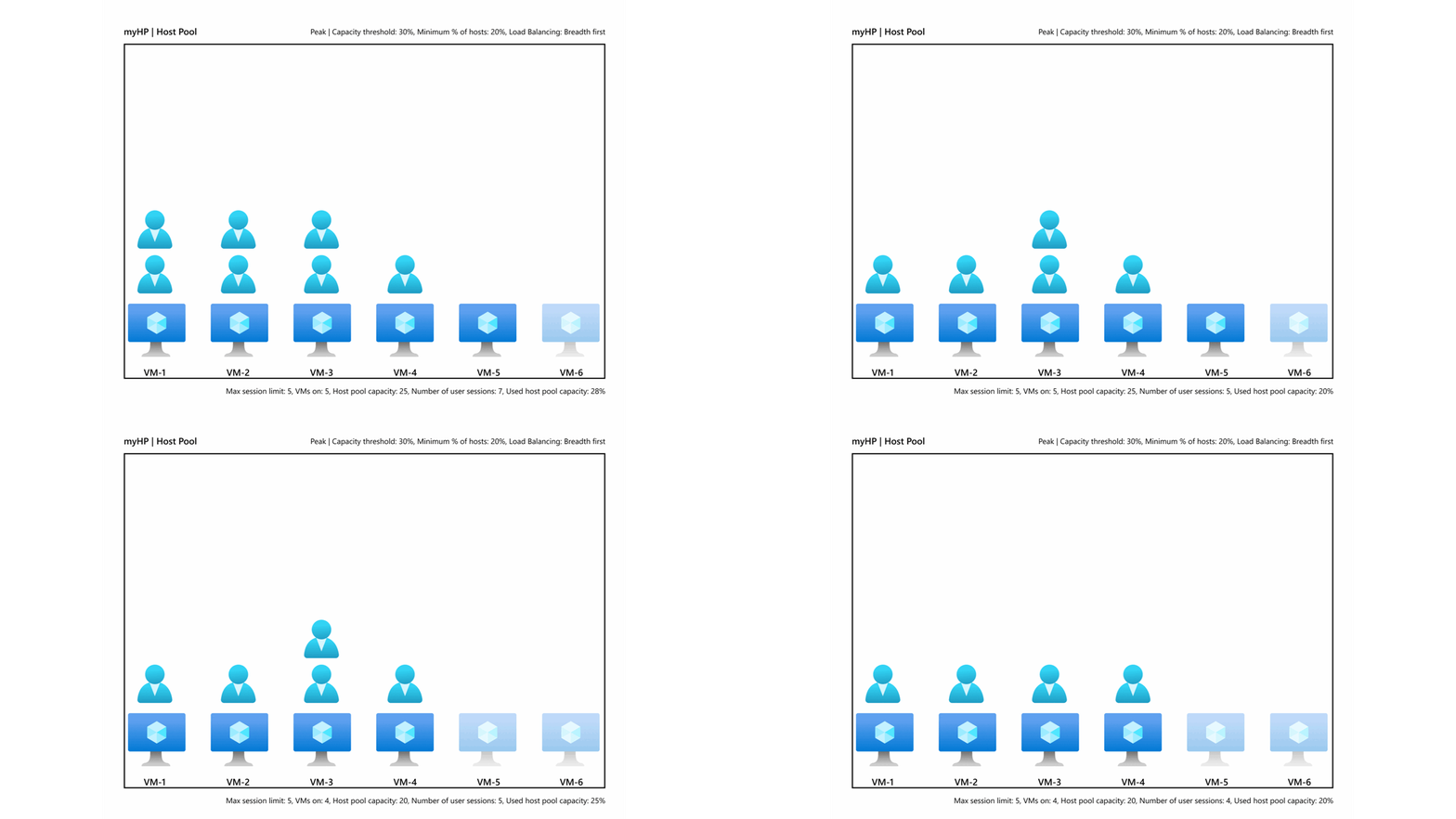
- Use Windows multi-session to reduce VM count
- Enable autoscaling to shut down idle VMs
- Right-size VM SKUs
- Use reserved instances for predictable workloads
- Monitor usage with Azure Cost Management
These steps can reduce Azure VDI costs significantly without impacting performance.
Common Azure VDI Use Cases
Azure VDI is widely adopted across industries:
- Remote and hybrid workforce
- Call centers and BPOs
- Secure access for third-party vendors
- Education labs and training environments
- Legacy application access
Its flexibility makes it suitable for both small teams and large enterprises.
End-User Experience
Users connect using the Remote Desktop client on:
- Windows
- macOS
- iOS
- Android
- Web browser
After login, they see their assigned workspace and can launch desktops or applications instantly.
Common Issues and Troubleshooting
Typical issues include:
- Users unable to see desktops → check assignments
- Login failures → verify identity and access policies
- Performance issues → resize VMs or add session hosts
Azure Monitor and Log Analytics are essential tools for diagnosing VDI problems.
Virtual Desktop Infrastructure in Azure provides a secure, scalable, and cost-effective way to deliver desktops and applications to modern workforces. By understanding VDI concepts, Azure architecture, and step-by-step configuration, organizations can confidently deploy a production-ready Azure VDI environment.
Whether you are planning your first VDI deployment or modernizing an existing setup, Azure offers the flexibility and reliability needed to support today’s remote and hybrid work models.