

📦 How to Archive, Compress, and Extract Files on Linux Using tar 📦
💻 Archiving, compressing, and extracting files are common tasks for Linux administrators. If you’ve worked with files like `.tar`, `.tar.gz`, `.xz`, or `.bz2`, they were likely created using the tar utility.
In this article, we’ll show you how to use the tar command to handle archives on Linux. Examples are on Ubuntu 20.04, but you can follow along on any Linux system with tar.
📘 What is tar?
tar (short for “tape archive”) is a command-line tool to create and extract archives.
An archive combines multiple files or directories into a single file, often called a “tarball” in Linux. Tarballs are widely used to distribute files, especially source code.
tar can also perform compression and decompression using utilities like gzip and bzip2.
🔍 tar vs. gzip
When handling archives on Linux, you may encounter both tar and gzip.
tar📁 — Creates archives from multiple files.gzip🗜️ — Compresses files.
They can be used together; tar can use gzip with the -z switch to compress files as they’re archived.
⚙️ gzip vs. bzip2 vs. xz Compression
tar can also use bzip2 and xz for compression. Here’s a comparison:
| Feature | gzip 🗜️ | bzip2 📊 | xz 💽 |
|---|---|---|---|
| Compression algorithm | DEFLATE | Burrows–Wheeler | LZMA |
| File extensions | .tar.gz, .tgz, .gz | .tar.bz2, .bz2 | .tar.xz, .xz |
tar switch |
-z |
-j |
-J |
💡 Note: We’ll use gzip in our examples. Replace -z with -j for bzip2 or -J for xz.
📂 How to Compress a Single File or Directory
To compress a file or directory, use:
tar -czvf <archive name> </path/to/file/or/directory>Switches explained:
c📝 – Create an archivez📦 – Use gzip compressionv👀 – Verbose outputf🎯 – Specify archive file name
Example:
tar -czvf egg.tar.gz /pepper📁 How to Compress Multiple Files or Directories to a Single Archive
To compress multiple files:
tar -czvf <archive name> </path/to/file/or/directory1> </path/to/file/or/directory2> ...Example:
tar -czvf egg.tar.gz one.txt two.mp4 three.iso
🚫 How to Exclude Directories and Files when Archiving
Use the --exclude option to exclude files or directories:
tar --exclude="*.log" -czvf egg.tar.gz /pepper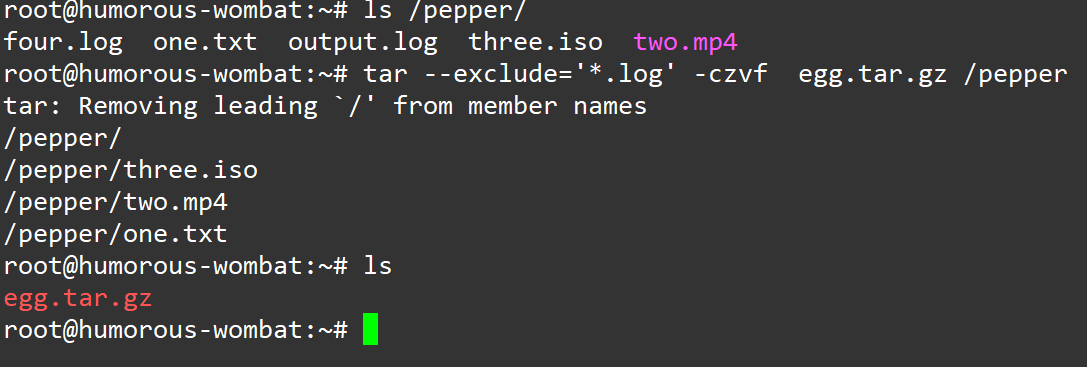
➕ How to Add Files to an Existing Archive
To add files to an uncompressed archive, use -r:
tar -rf <tar archive> </path/to/file>⚠️ Note: This does not work with compressed archives like gzip.
🔍 How to List the Contents of an Archive
To list the contents of an archive, use:
tar -tvf <archive>Example:
tar -tvf egg.tar.xz
📤 How to Extract an Archive
To extract an archive, use:
tar -xf <archive>Example:
tar -xf egg.tar.gz
📂 How to Extract an Archive to a Specific Directory
To extract to a specific directory, use -C:
tar -xf <archive> -C </path/to/destination>Example:
tar -xf egg.tar.gz -C /tmp/cherry
🏁 Conclusion
🎉 Now you can work with “tarballs” like a pro! Use tar with different switches for varied results, and explore more in the GNU tar manual for a deeper dive.