

Basic Shell Commands in Linux
A shell is a special user program that provides an interface to the user to use operating system services. Shell accepts human-readable commands from the user and converts them into something which the kernel can understand. It is a command language interpreter that executes commands read from input devices such as keyboards or from files. The shell gets started when the user logs in or starts the terminal.
Basic Shell Commands in Linux mentioned below
1). Displaying the file contents on the terminal:
- cat: It is generally used to concatenate the files. It gives the output on the standard output.
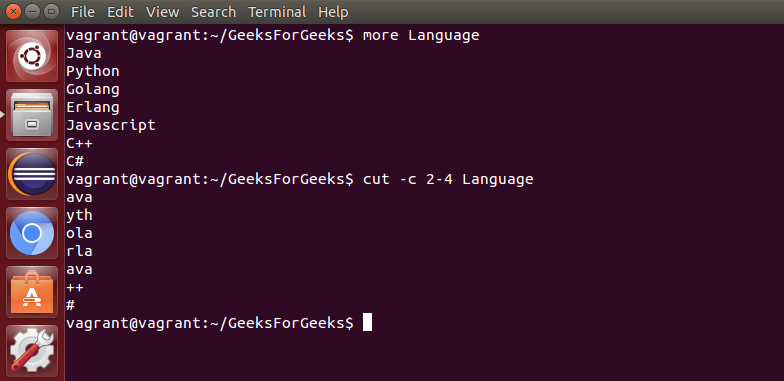
- more: It is a filter for paging through text one screenful at a time.

- less: It is used to viewing the files instead of opening the file.Similar to more command but it allows backward as well as forward movement.

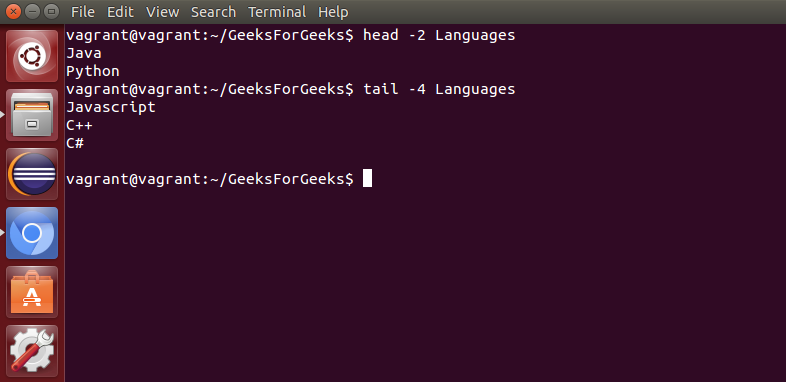
- head : Used to print the first N lines of a file. It accepts N as input and the default value of N is 10.
- tail : Used to print the last N-1 lines of a file. It accepts N as input and the default value of N is 10.
2). File and Directory Manipulation Commands:
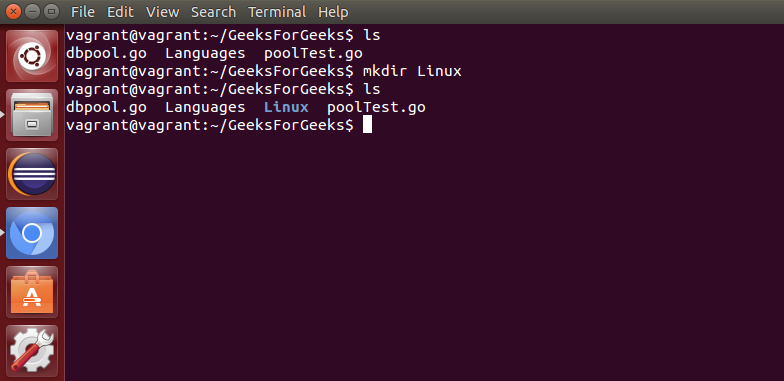
- mkdir : Used to create a directory if not already exist. It accepts the directory name as an input parameter.
- cp : This command will copy the files and directories from the source path to the destination path. It can copy a file/directory with the new name to the destination path. It accepts the source file/directory and destination file/directory.

- mv : Used to move the files or directories. This command’s working is almost similar to cp command but it deletes a copy of the file or directory from the source path.

- rm : Used to remove files or directories.

- touch : Used to create or update a file.

3). Extract, sort, and filter data Commands:
- grep : This command is used to search for the specified text in a file.

- grep with Regular Expressions: Used to search for text using specific regular expressions in file.

- sort : This command is used to sort the contents of files.

- wc : Used to count the number of characters, words in a file.

- cut : Used to cut a specified part of a file.
4). Basic Terminal Navigation Commands:
- ls : To get the list of all the files or folders.
- ls -l: Optional flags are added to ls to modify default behavior, listing contents in extended form -l is used for “long” output
- ls -a: Lists of all files including the hidden files, add -a flag
- cd: Used to change the directory.
- du: Show disk usage.
- pwd: Show the present working directory.
- man: Used to show the manual of any command present in Linux.
- rmdir: It is used to delete a directory if it is empty.
- ln file1 file2: Creates a physical link.
- ln -s file1 file2: Creates a symbolic link.
- locate: It is used to locate a file in Linux System
- echo: This command helps us move some data, usually text into a file.
- df: It is used to see the available disk space in each of the partitions in your system.
- tar: Used to work with tarballs (or files compressed in a tarball archive)
5). File Permissions Commands: The chmod and chown commands are used to control access to files in UNIX and Linux systems.
- chown : Used to change the owner of the file.
- chgrp : Used to change the group owner of the file.
- chmod : Used to modify the access/permission of a user.
1. Displaying the File Contents
cat: Displays the content of a file.cat file.txtmore: Displays file content one page at a time.more file.txtless: Similar tomore, but allows both forward and backward navigation.less file.txthead: Displays the first 10 lines of a file (or a specified number).head file.txt head -n 20 file.txt # Displays the first 20 linestail: Displays the last 10 lines of a file (or a specified number).tail file.txt tail -n 20 file.txt # Displays the last 20 lines
2. File and Directory Manipulation
mkdir: Creates a new directory.mkdir new_directorycp: Copies files or directories.cp source.txt destination.txt cp -r source_dir/ destination_dir/ # Copy directory recursivelymv: Moves or renames files and directories.mv oldname.txt newname.txt # Rename file mv file.txt /home/user/ # Move file to specified directoryrm: Removes files or directories.rm file.txt rm -r directory_name/ # Remove directory recursivelytouch: Creates a new empty file or updates the timestamp of an existing file.touch newfile.txt
3. Extract, Sort, and Filter Data
grep: Searches for specific text within a file.grep "search_term" file.txtgrep -r: Searches recursively through a directory for a pattern.grep -r "search_term" /path/to/directorysort: Sorts the content of a file.sort file.txtwc: Counts words, lines, and characters in a file.wc file.txt wc -w file.txt # Count words wc -l file.txt # Count linescut: Extracts specific columns from a file.cut -d " " -f 1 file.txt # Extract the first column, assuming space is delimiter
4. Basic Terminal Navigation
ls: Lists files and directories.lsls -l: Lists files in long format, showing permissions, ownership, etc.ls -lls -a: Lists all files, including hidden ones.ls -acd: Changes the current directory.cd /home/user/Documents cd .. # Move up one directorypwd: Displays the current directory path.pwddu: Displays disk usage of a directory.du -sh /path/to/directorydf: Displays free disk space of mounted filesystems.df -hman: Displays the manual page for a command.man ls
5. File Permissions Commands
chmod: Changes file permissions.chmod 755 file.txt # Set permissions to rwxr-xr-x chmod u+x file.txt # Add execute permission to userchown: Changes the owner of a file or directory.chown user:group file.txtchgrp: Changes the group of a file or directory.chgrp groupname file.txt
6. Creating and Managing Links
ln: Creates a hard link.ln original.txt link.txtln -s: Creates a symbolic (soft) link.ln -s /path/to/original.txt symlink.txt
7. Compression and Archiving
tar: Creates and extracts tarball archives.tar -cvf archive.tar directory/ # Create tar archive tar -xvf archive.tar # Extract tar archive tar -czvf archive.tar.gz directory/ # Create compressed tar archive (gzip)
8. Other Useful Commands
echo: Displays a message or the value of a variable.echo "Hello, World!" echo $HOMElocate: Locates a file by its name.locate file.txt
basic shell scripting commands in linux
In Linux, shell scripting allows users to automate tasks and execute commands in a sequence. A shell script is a file that contains a series of commands that are executed in order. Below is a list of basic shell scripting commands along with examples:
1. Shebang (#!)
The shebang (#!) is used at the start of a script to tell the system which interpreter to use for executing the script (e.g., /bin/bash for Bash scripts).
#!/bin/bash
# This line tells the system to use Bash as the interpreter.
2. Comments (#)
Anything after a # in a script is considered a comment and is ignored by the shell.
# This is a comment
echo "Hello, World!"  # This is also a comment
3. Variables
You can store data in variables and use them throughout the script.
name="John"
echo "Hello, $name!"  # Output: Hello, John!
4. Reading User Input (read)
The read command is used to take input from the user.
echo "Enter your name: "
read name
echo "Hello, $name!"
5. Conditionals (if, else, elif)
You can use conditional statements to perform different actions based on conditions.
# If-else condition
if [ $name == "John" ]; then
    echo "Hello, John!"
else
    echo "Hello, Stranger!"
fi
# Elif condition
if [ $name == "John" ]; then
    echo "Hello, John!"
elif [ $name == "Jane" ]; then
    echo "Hello, Jane!"
else
    echo "Hello, Stranger!"
fi
6. Loops (for, while, until)
Loops are used to execute a set of commands repeatedly.
forloop: Loops over a list of items.
for i in {1..5}; do
    echo "Number $i"
done
whileloop: Loops as long as a condition is true.
count=1
while [ $count -le 5 ]; do
    echo "Count: $count"
    ((count++))  # Increment the count
done
untilloop: Loops until a condition is true.
count=1
until [ $count -gt 5 ]; do
    echo "Count: $count"
    ((count++))  # Increment the count
done
7. Test ([ ])
The test command (or [ ]) is used to evaluate expressions such as comparisons or file conditions.
# Check if a file exists
if [ -f "file.txt" ]; then
    echo "File exists"
else
    echo "File does not exist"
fi
# Check if two numbers are equal
a=5
b=5
if [ $a -eq $b ]; then
    echo "Numbers are equal"
else
    echo "Numbers are not equal"
fi
8. Functions
Functions allow you to define reusable blocks of code.
# Define a function
greet() {
    echo "Hello, $1!"
}

# Call the function
greet "John"  # Output: Hello, John!
9. Exit Status ($?)
You can use the special variable $? to capture the exit status of the last executed command. A value of 0 indicates success, while any non-zero value indicates failure.
echo "Hello"
status=$?  # Capture exit status
echo "Exit status: $status"
10. Redirecting Output (>, >>, <)
You can redirect the output of a command to a file or take input from a file.
- Redirect output to a file (
>): Overwrites the file.
echo "This is a test" > file.txt # Overwrites file.txt
- Append output to a file (
>>): Appends to the file.
echo "This is another test" >> file.txt # Appends to file.txt
- Take input from a file (
<): Reads from a file.
while read line; do
    echo $line
done < file.txt
11. Pipes (|)
The pipe | allows you to use the output of one command as input to another.
cat file.txt | grep "search_term" # Display lines from file.txt that contain 'search_term'
12. Exit (exit)
The exit command terminates the script with an optional exit status.
exit 0  # Exit with a success status (0)
exit 1  # Exit with an error status (non-zero)
13. Scripting with Arguments ($1, $2, etc.)
You can pass arguments to your script and access them via special variables.
#!/bin/bash
# Accessing script arguments
echo "First argument: $1"
echo "Second argument: $2"
# Running the script with arguments
./myscript.sh arg1 arg2
14. Looping Over Command Line Arguments
You can loop through all the arguments passed to the script using $@.
#!/bin/bash
# Loop through all arguments
for arg in "$@"; do
    echo "Argument: $arg"
done
15. Debugging Scripts (set -x)
The set -x command is used to print each command as it’s executed, which is helpful for debugging.
#!/bin/bash
set -x  # Start debugging
echo "This will be debugged"
set +x  # End debugging