

🔐 RDP to Azure VMs via Bastion
🌟 Introduction
Azure Bastion is a fully managed platform that allows you to securely access your Azure Virtual Machines (VMs) using the Remote Desktop Protocol (RDP) or Secure Shell Protocol (SSH) directly from the Azure Portal. With Azure Bastion, you no longer need to expose your VM’s RDP or SSH ports to the public internet, reducing the risk of attacks.
In this guide, we’ll walk you through setting up Azure Bastion, connecting to your VMs securely, and understanding its key features, benefits, advantages and disadvantages, and best practices.
💡 What is Azure Bastion?
Azure Bastion is a managed service that provides secure and seamless RDP and SSH connectivity to your Azure Virtual Machines over a private network. It eliminates the need for public IPs or network security group (NSG) rules that expose your VMs to the internet.
Key Use Cases:
- Securely RDP or SSH into Azure VMs without public IP addresses.
- Manage virtual machines behind a firewall or in isolated networks.
- Reduce the attack surface by avoiding open RDP/SSH ports.
✅ Key Features of Azure Bastion
- Secure Access: RDP and SSH connectivity without exposing VMs to the internet.
- Browser-Based Access: Connect to VMs directly from the Azure Portal using a browser.
- Support for Multiple Protocols: Works with RDP and SSH protocols.
- Always-On Platform: Ensures connectivity without requiring additional configuration.
- Integration with Azure Networking: Works seamlessly with Azure VNets and NSGs.
- Enhanced Security: No need for public IP addresses or open ports.
💡 Benefits of Using Azure Bastion
- Improved Security: Protects your VMs by eliminating public exposure of RDP/SSH ports.
- Ease of Use: No additional software or VPN required; connect directly from the Azure Portal.
- Cost-Effective: Reduces the need for costly VPN gateways or jump servers.
- Centralized Management: Manage all your VM connections from a single interface.
- Reliable Connectivity: Always-on service with high availability.
🌟 Advantages of Azure Bastion
- Seamless Integration: Fully integrates with Azure VNets and virtual machines.
- Eliminates Public Exposure: Protects VMs from common brute force and port scanning attacks.
- Simple Setup: Easy to deploy and configure via the Azure Portal.
- Multi-Protocol Support: Works with both RDP and SSH connections.
- Global Accessibility: Access your VMs securely from anywhere via the Azure Portal.
⚠️ Disadvantages of Azure Bastion
- Cost: Azure Bastion incurs additional charges for the service and bandwidth usage.
- Limited Customization: Advanced configurations may require additional services.
- No CLI Support: Connections are limited to browser-based access from the Azure Portal.
- Dependent on Azure Portal: Requires the Azure Portal for connectivity, which may not suit all workflows.
🛠️ RDP to Azure VMs via Bastion
📌 Step 1: Log in to the Azure Portal
- Go to the Azure Portal and sign in with your credentials.
📌 Step 2: Set Up Azure Bastion
- Navigate to the Virtual Network (VNet) where your VM is hosted.
- Under the Settings section, select Bastion.
- Click Create Bastion to start the setup process.
- Fill in the required details:
- Name: Enter a name for the Bastion resource (e.g., `MyBastion`).
- Virtual Network: Select the VNet associated with your VM.
- Subnet: Create a new subnet named `AzureBastionSubnet` with a prefix of at least `/27`.
- Public IP Address: Create a new public IP or use an existing one.
- Click Review + Create and then Create to deploy Azure Bastion.
📌 Step 3: Connect to the Virtual Machine
- Go to the Virtual Machine you want to access.
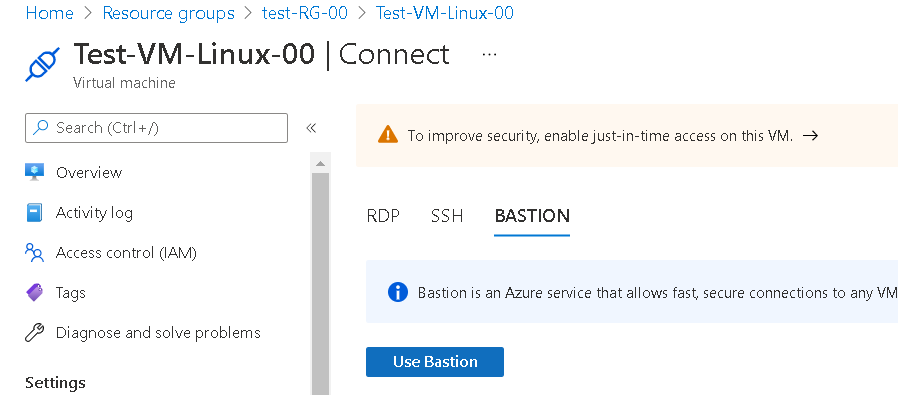
- Click on Connect at the top of the VM’s Overview page and select Bastion.

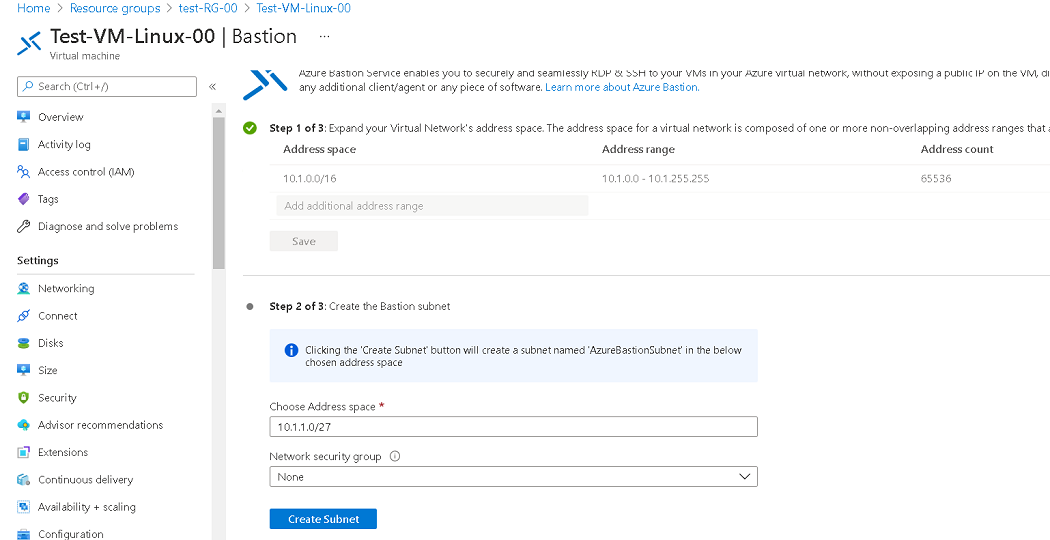
 On the next page. it will show the address space and we can choose the respective address space. I choose default address space. Then create a Bastion Subnet. Choose Address space for Bastion subnet and select NSG(Network Security Group) if needed.
 On the next page, create Bastian and give it a name. Select Tier, Public IP address name, and Resource group. Click on ‘Create Azure Bastion using defaults’. To customize the default settings of Azure Bastion, use the other option ‘ I want to configure Azure Bastion on my own’
- Once the Provisioning state is Succeeded, log in into the VM with Username and downloaded the private key. Click on Connect.
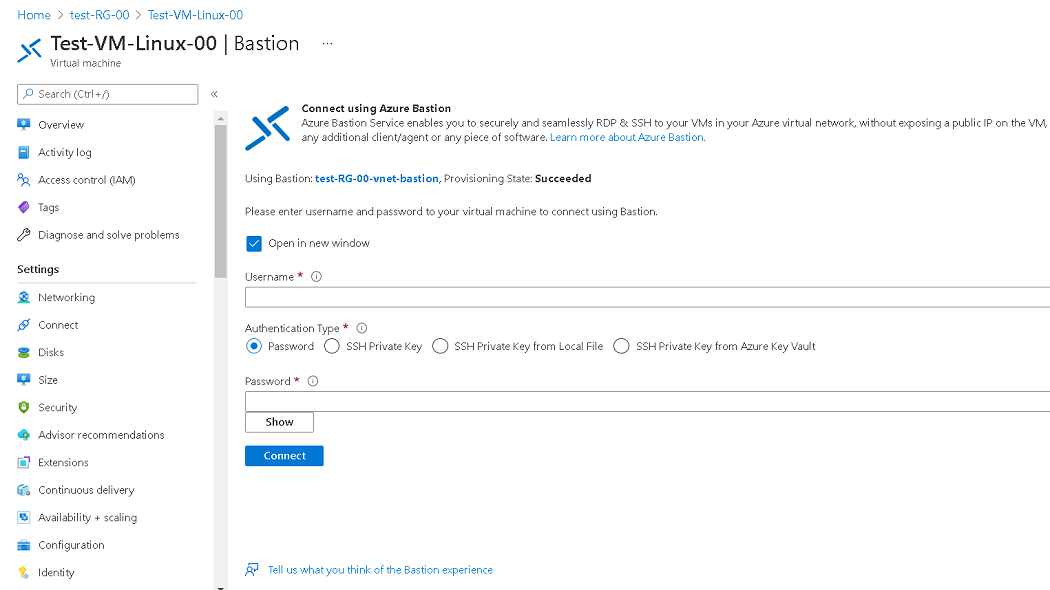
- The Linux Virtual machine will open in the next tab.
Azure Bastion on Windows VM:
-
- Go to portal.azure.com and sign in. Also, create a Windows Virtual Machine. I have created “Test-VM-00” where the image is Windows 10 Pro, Version 20H2 – Gen 1. On the overview tab, click on connect and select ‘Bastion’.

- Similarly, repeat steps 2-4 for the windows machines too. The windows machine will open in the next tab.
- Go to portal.azure.com and sign in. Also, create a Windows Virtual Machine. I have created “Test-VM-00” where the image is Windows 10 Pro, Version 20H2 – Gen 1. On the overview tab, click on connect and select ‘Bastion’.

🎯Unable to connect to take azure vms rdp
If you’re unable to connect to your Azure Virtual Machine (VM) using Remote Desktop Protocol (RDP), here are a few steps to help troubleshoot and resolve the issue:
1. Check VM Status
- Ensure the VM is running in the Azure portal.
- Go to Virtual Machines > Select your VM > Check if its status is “Running.”
2. Check RDP Port (3389) Connectivity
- Firewall or Network Security Group (NSG) settings might be blocking RDP traffic on port 3389.
- Go to Network Security Group (NSG) associated with the VM and ensure that there’s an inbound rule allowing TCP traffic on port 3389.
- To check:
- Go to Network Security Group > Inbound security rules.
- Look for a rule allowing Port 3389 (Remote Desktop).
If not, add a rule:
az network nsg rule add --resource-group MyResourceGroup --nsg-name MyNSG --name Allow-RDP --protocol Tcp --direction Inbound --priority 1000 --source-address-prefix '*' --source-port-range '*' --destination-address-prefix '*' --destination-port-range 3389 --access Allow
- To check:
3. Verify Public IP Address
- Make sure the VM has a Public IP and that you’re using it to connect.
- In the Azure Portal, go to VM > Networking > Public IP. Ensure it’s assigned and accessible.
4. Check Network Configuration
- Ensure your Virtual Network (VNet) and Subnet are configured properly and allow inbound RDP connections.
- If the VM is on a private network, ensure you’re connecting through a VPN or a Jumpbox (bastion host).
5. Check RDP Settings on the VM (Windows)
- Ensure that Remote Desktop is enabled on the VM.
- Go to Start > Settings > System > Remote Desktop and make sure it’s enabled.
- Ensure that Windows Firewall on the VM is allowing inbound connections for RDP.
6. Check for RDP Licensing Issues (for Windows VMs)
- Ensure the Windows Server version has the proper licensing for RDP connections (e.g., no RDP session limit or expired license).
7. Restart the VM
Sometimes, restarting the VM can resolve temporary issues.
- Go to the Azure portal, select the VM, and click Restart.
8. Check for IP Restrictions or VPN Configuration
- If you’re connecting from a corporate network, there may be IP restrictions on the VM.
- Check if your IP is allowed by the NSG or if there are any firewall rules blocking your connection.
9. Use Azure Bastion
If you’re unable to RDP directly, you can use Azure Bastion for a secure RDP connection without exposing the VM to the public internet.
- Navigate to the VM > Connect > Bastion and follow the prompts to connect.
10. Check RDP Logs (Windows)
If the RDP session is failing, you can check the Windows Event Logs to gather more information about why RDP is not connecting. You can access logs through the Event Viewer on the VM.
Troubleshooting Example Commands:
- Check VM Status:
az vm get-instance-view --resource-group MyResourceGroup --name MyVM --query instanceView.statuses[1] - Check Network Security Group Rules:
az network nsg rule list --resource-group MyResourceGroup --nsg-name MyNSG --output table - Check Public IP Address:
az vm list-ip-addresses --resource-group MyResourceGroup --name MyVM --output table
By following these steps, you should be able to troubleshoot and resolve the issue with RDP access to your Azure VM. If the issue persists, you may want to check for additional network or configuration problems specific to your environment.
✅ Best Practices for Azure Bastion
- Use Private IPs: Avoid assigning public IPs to VMs; use Bastion for secure access.
- Enable Logging: Use Azure Monitor and logs to track Bastion usage and connections.
- Restrict Access: Use Network Security Groups (NSGs) to restrict access to the AzureBastionSubnet.
- Monitor Costs: Regularly review Bastion usage to manage costs effectively.
- Deploy in Critical VNets: Use Azure Bastion for all VNets with critical or sensitive workloads.
🎯 Conclusion
Azure Bastion provides a secure and seamless way to connect to your Azure Virtual Machines without exposing them to the public internet. By eliminating open RDP/SSH ports, it significantly reduces the attack surface, ensuring your VMs are protected while being accessible from anywhere.
Start using Azure Bastion today by logging into the Azure Portal. For more advanced configurations and scenarios, explore the official Azure Bastion documentation.
Learn More: How to Create a Virtual Machine in Azure