
How to Create Cloud Storage Bucket in Google Cloud Platform
✨ Introduction to GCP Cloud Storage
Google Cloud Platform (GCP) offers a versatile and scalable storage solution known as Cloud Storage. It’s designed for businesses of all sizes, enabling secure, durable, and cost-effective storage of data. Whether you need to store frequently accessed files or archival data, GCP Cloud Storage provides flexible options to meet your requirements.
Explore the core features, use cases, step-by-step configuration, and best practices for optimizing GCP Cloud Storage. Let’s dive in!
🌟 Features of GCP Cloud Storage
🔧 Storage Classes
- Standard:
- High durability and low latency.
- Ideal for frequently accessed “hot” data such as streaming media, transactional records, and user-generated content.
- Suitable for applications requiring quick and consistent access.
- Nearline:
- Designed for less frequently accessed data, typically once a month or less.
- Cost-efficient with slightly higher retrieval latency compared to Standard.
- Use cases include monthly backups, long-tail media content, or data archiving with infrequent access.
- Coldline:
- Optimized for data accessed less than once a quarter.
- Suitable for long-term data storage such as disaster recovery backups, infrequently used regulatory documents, and cold archives.
- Archive:
- Ultra-low-cost storage designed for long-term archiving and compliance data.
- Requires a minimum 365-day storage duration but provides unparalleled cost savings.
- Ideal for legal documents, medical records, and historical datasets.
🌍 Global Access
- Multi-Region Availability:
- Data can be stored across multiple regions for improved latency and availability.
- Supports high-performance global applications and cross-regional disaster recovery strategies.
- Regional Availability:
- Store data in specific regions to meet compliance and regulatory requirements.
- Suitable for workloads where low latency and proximity to compute resources are crucial.
- Durability:
- Data is redundantly stored across locations within a region or across multiple regions, ensuring a high level of reliability.
⚡ Security
- Encryption:
- Automatic encryption of data at rest using Google-managed encryption keys.
- Supports customer-managed encryption keys (CMEK) and customer-supplied encryption keys (CSEK) for enhanced control.
- TLS encryption for secure data transmission.
- Access Controls:
- Fine-grained access permissions through IAM roles, enabling role-based security.
- Supports Access Control Lists (ACLs) and Bucket Policies for granular permissions.
- Enables object-level permissions to secure sensitive files.
- Monitoring and Compliance:
- Integrated with Cloud Audit Logs to track storage access and changes.
- Compliant with major standards like ISO 27001, HIPAA, GDPR, and SOC 2.
⌛ Lifecycle Management
- Define lifecycle policies to automatically delete, move, or archive objects based on business needs.
- Automate transitions between storage classes to optimize costs. For example:
- Move inactive objects from Standard to Nearline after 30 days.
- Transition data to Coldline or Archive after 90 days.
- Helps reduce storage costs without manual intervention.
📊 Seamless Integration
- Native GCP Integration:
- Seamlessly connects to services like BigQuery, AI and ML tools, and Compute Engine.
- Enables robust data pipelines and analytics workflows.
- Third-Party Compatibility:
- Supports popular third-party tools and APIs for data migration, backup, and disaster recovery.
- Compatible with tools like Kubernetes, Terraform, and Apache Spark for advanced use cases.
- Hybrid and Multi-Cloud:
- Use GCP Transfer Service or Storage Transfer Service to migrate data from on-premises or other cloud providers.
- Integrates with Anthos for hybrid cloud deployments.
✨Advanced Features
- Versioning:
- Track changes to objects with Object Versioning.
- Restore previous versions of objects to recover from accidental deletions or corruption.
- Object Lock:
- Write-once-read-many (WORM) support for regulatory compliance.
- Prevent deletion or modification of data for a defined retention period.
- Event Notifications:
- Trigger Cloud Functions, Pub/Sub, or workflows based on events like object creation or deletion.
📄 Use Cases of GCP Cloud Storage
🛠️ Backup and Disaster Recovery
- Cross-Region Resilience:
- Store backup copies in multiple regions for greater fault tolerance.
- Fast Recovery:
- Restore critical systems and data in minutes, ensuring minimal downtime during outages.
📡 Content Delivery
- Edge Integration:
- Integrates with Cloud CDN to cache and deliver static content worldwide.
- Guarantees fast and consistent access for global users.
- Dynamic Media:
- Store high-quality media files and stream them with low latency.
📊 Big Data Analytics
- Scalability:
- AI and Machine Learning:
- Seamlessly integrate with AI and ML tools to train models on stored datasets.
- Automate insights generation from archived or real-time data streams.
📺 Application Hosting
- Static Website Hosting:
- Host static websites with scalable storage for HTML, CSS, and JS files.
- Custom domain mapping and SSL support ensure secure and professional hosting.
- Media Asset Management:
- Centralized repository for storing images, videos, and other digital assets.
⚙️ Step-by-Step Create Cloud Storage Bucket
Step 1: Log in to Google Cloud Console

Step 2: Go to the service section search for Cloud Storage and select Bucket

Step 3: Click Create Bucket and configure:

Step 4: Bucket Name: Choose a unique name.

Step 5: Select the Location Type: Select Multi-region, Region, or Dual-region.
- Storage Class: Choose between Standard, Nearline, Coldline, or Archive.
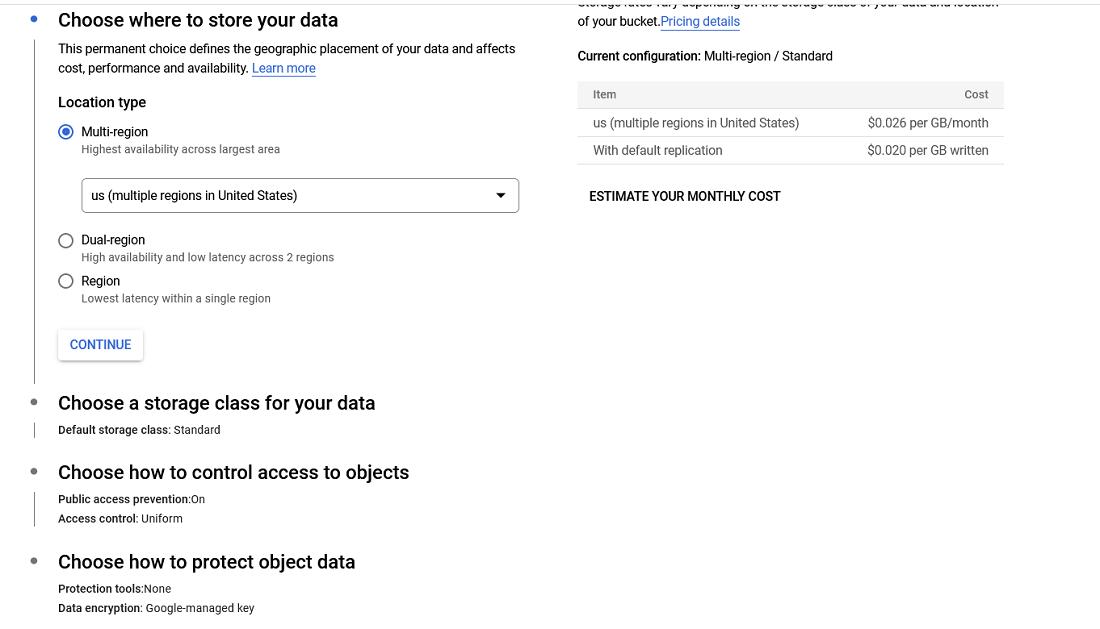
Step 6: Access Control: Select Uniform or Fine-grained access control.

Step 7: Select Protection Tools then click on Create

Bucket will be created.

- Using the Console:
- Open your bucket in the Cloud Storage section.
- Click Upload Files to select and upload files from your local system.
- Using the CLI Command: Use the following
gsutilcommand:After creating a bucket, the next step is to upload files to it. You can upload files using the Google Cloud Console or the command-line interface (CLI):gsutil cp [FILE_PATH] gs://[BUCKET_NAME]
- Assign IAM Roles:
- Go to the Permissions tab under Bucket Details in the console.
- Assign roles such as Storage Admin, Storage Viewer, or Storage Editor to users, groups, or service accounts. These roles control the level of access to the bucket.
- Use Access Control Lists (ACLs):
- ACLs allow fine-grained, object-level permissions. For example, you can grant specific access to a single file without exposing the entire bucket.
Step 10: Enable Lifecycle Policies
Lifecycle policies automate the management of objects within the bucket by applying rules based on their age or storage class:
- Navigate to the Bucket Details page and open the Lifecycle tab.
- Add policies to perform the following tasks:
- Transition Storage Class: Move objects to a lower-cost storage class, such as Coldline or Archive, after a specified period.
- Automatic Deletion: Remove objects after a set number of days, freeing up storage space and reducing costs.
Step 11: Enable Object Versioning
Object versioning is a crucial feature for preserving older versions of objects, safeguarding against accidental deletions or overwrites.
- Go to the Bucket Details page in the Cloud Console.
- Click the Versioning tab.
- Enable Object Versioning for the bucket.
✅ Best Practices for GCP Cloud Storage
🔄 Enable Lifecycle Policies to Optimize Costs
- Use lifecycle rules to transition objects to lower-cost storage classes like Nearline, Coldline, or Archive.
- Set rules to delete unnecessary data after a retention period.
🔒 Use IAM Roles for Secure and Managed Access
- Follow the principle of least privilege by assigning IAM roles such as Storage Object Viewer or Admin.
- Regularly audit and monitor permissions to avoid public exposure.
🔌 Leverage Cloud Monitoring and Logging
- Enable Cloud Monitoring to track storage usage and performance.
- Set up alerts for anomalies, such as unexpected data access or storage quota breaches.
- Use Cloud Logging for auditing bucket activity.
📊 Integrate with BigQuery and AI Tools
- Store datasets in Cloud Storage for seamless analysis with BigQuery.
- Use Vertex AI for advanced machine learning tasks using data from Cloud Storage.
🔧 Maintenance and Alerting
- Regularly review storage usage and lifecycle policies to ensure alignment with cost and access goals.
- Configure alerts for critical events, such as nearing storage quotas or unusual access patterns.
- Use Bucket Lock to enforce data retention policies and prevent accidental deletions.
🔬 Conclusion
GCP Cloud Storage is a powerful, scalable, and secure solution for all your data storage needs. With features like storage classes, global access, and lifecycle management, it can efficiently support diverse use cases such as backups, content delivery, and big data analytics.
Implementing the best practices discussed in this guide will ensure you maximize performance, enhance security, and minimize costs. Start your journey with Google Cloud Platform today and unlock the potential of cloud storage for your business.