
How to Create Application Gateway in Azure
Learn how to create and configure an Azure Application Gateway, a Layer 7 load balancer that manages web traffic for your virtual machines or services, ensuring high availability, scalability, and enhanced security.
Introduction
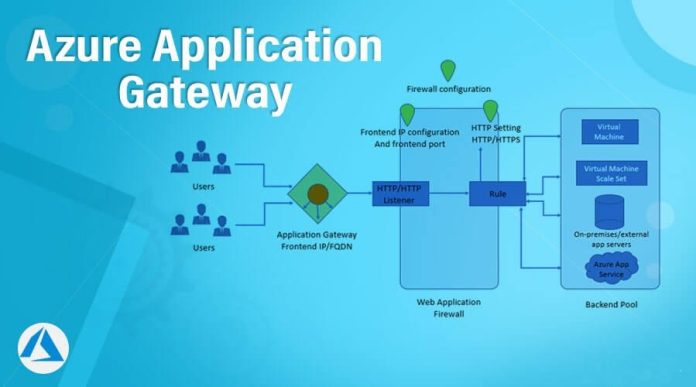
Azure Application Gateway is a scalable, highly available Layer 7 load balancer that manages web traffic. It enables features like URL path-based routing, SSL termination, and Web Application Firewall (WAF). Unlike traditional Azure Load Balancers that operate at Layer 4 (TCP/UDP), Application Gateway can route traffic based on HTTP headers, hostnames, and URL paths, providing greater control and security over web applications.
This guide provides step-by-step instructions to set up and configure an Application Gateway in Azure to distribute traffic across multiple virtual machines, ensuring web application performance, resilience, and scalability.
Key Features of Azure Application Gateway
- Layer 7 Load Balancing – Routes web traffic based on URL paths, HTTP headers, and hostnames.
- SSL Termination – Offloads SSL decryption from backend VMs, improving performance.
- Web Application Firewall (WAF) – Protects against common web vulnerabilities and attacks.
- URL Path-Based Routing – Directs traffic to specific backend pools based on URL paths.
- Multi-Site Hosting – Hosts multiple sites behind a single gateway with unique routing rules.
- Session Affinity – Ensures that user sessions are routed to the same backend server.
- Autoscaling – Automatically scales with traffic demand, ensuring availability during peak times.
- Health Probes – Monitors backend VM health and routes traffic only to healthy instances.
- Zone Redundancy – Supports deployment across availability zones for improved fault tolerance.
- Custom Error Pages – Customize responses for specific error codes, enhancing user experience.
How to Create Application Gateway in Azure
Prerequisites
- An active Azure account with a valid subscription.
- Basic understanding of Azure networking and virtual machines.
- Familiarity with HTTP/HTTPS protocols and SSL certificates (for SSL termination).
Sign in to Azure
- An active Azure account with a valid subscription. If you don’t have one, create a free Azure account.
- Basic understanding of Azure networking and virtual machines.
- Familiarity with HTTP/HTTPS protocols and SSL certificates (for SSL termination).
Create a Virtual Network and Subnets
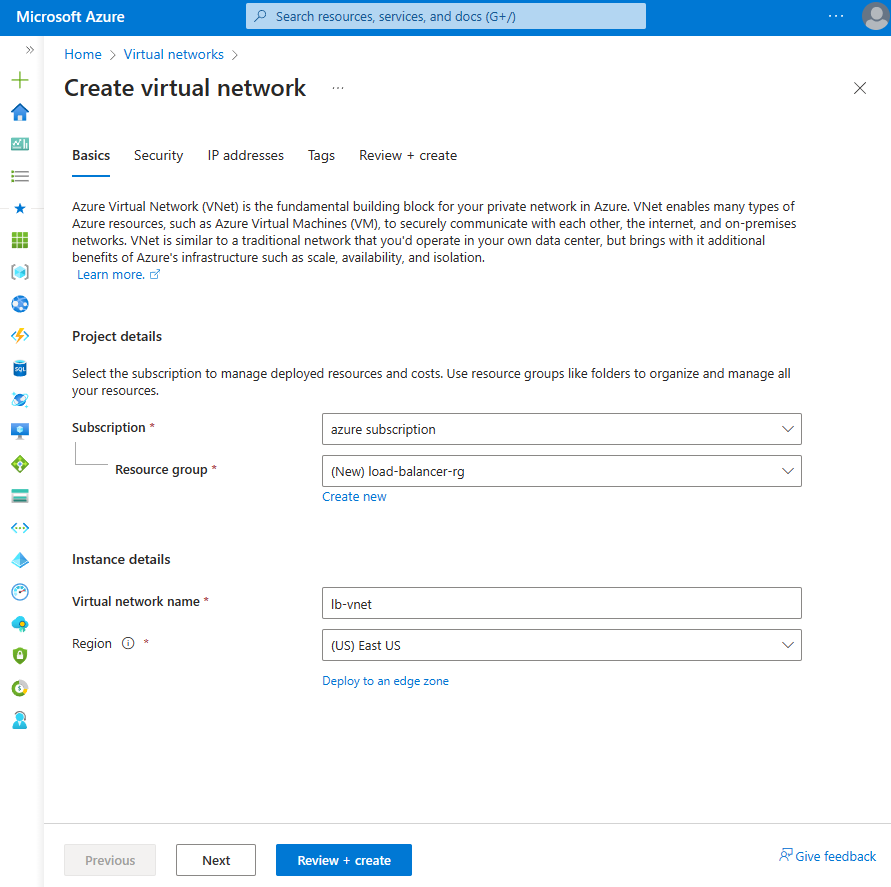
- In the Azure portal, search for Virtual Networks in the search bar.
- Select + Create to create a new virtual network.
Basics Tab:
- Subscription – Select your Azure subscription.
- Resource Group – Create a new resource group and name it appgateway-rg.
- Name – Enter appgateway-vnet.
- Region – Choose East US or your preferred region.
- Click on the IP Addresses tab.
IP Addressing:
- IPv4 Address Space – Enter 10.0.0.0/16.
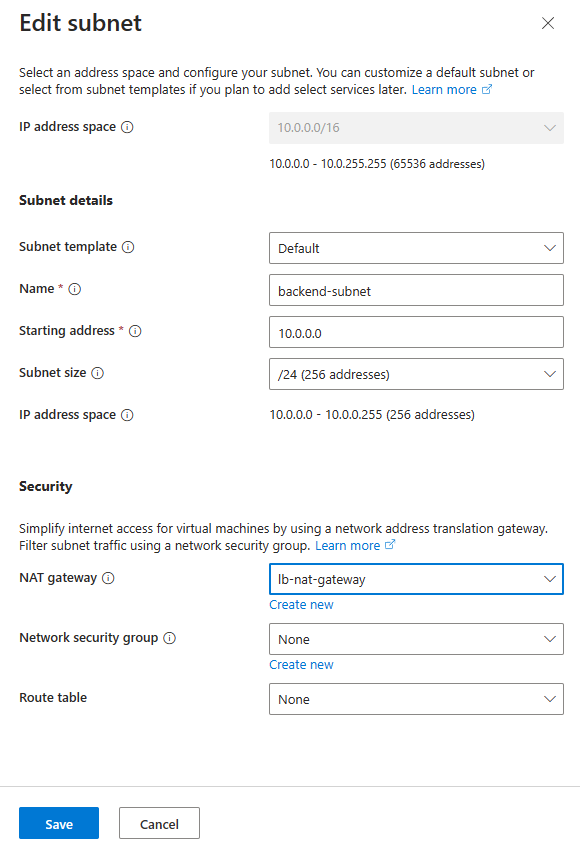
- Subnets – Create two subnets:
- Frontend Subnet – Name it appgateway-subnet with 10.0.1.0/24.
- Backend Subnet – Name it backend-subnet with 10.0.2.0/24.
- Click Review + Create and then Create after validation.
Create an Application Gateway