
Gcp external load balancer to internal load balancer
Introduction
Google Cloud Platform (GCP) provides robust load balancing services to distribute network traffic efficiently and ensure high availability for your applications. Whether you are using Compute Engine, Kubernetes, or a platform like WordPress, GCP’s load balancing solutions are versatile enough to meet your needs. However, users often encounter challenges, such as when GCP can’t connect load balancer external IP or while configuring load balancer front end config GCP.
This guide will cover these topics, the types of GCP load balancers, transitioning from GCP external load balancer to internal load balancer, and more.
What is Load Balancing in GCP?
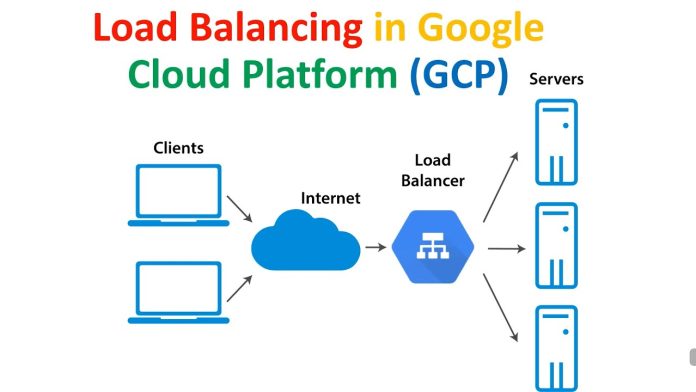
Load balancing in GCP is the process of distributing incoming traffic across multiple backend instances or services to optimize application performance, improve resource utilization, and ensure high availability. It supports both external and internal traffic balancing across various protocols.
GCP Load Balancer Types
GCP offers multiple types of load balancers tailored to different use cases. Here’s a breakdown:
1. External Load Balancers
Used for traffic coming from the internet to your application.
- HTTP(S) Load Balancer: Ideal for web applications, supporting global distribution.
- SSL Proxy Load Balancer: Optimized for encrypted (SSL) traffic.
- TCP Proxy Load Balancer: Best for non-HTTP TCP traffic.
- Network TCP/UDP Load Balancer: Operates at the transport layer for high-performance applications.
2. Internal Load Balancers
Used for traffic within a private network (VPC).
- Internal HTTP(S) Load Balancer: Distributes HTTP(S) traffic within the VPC.
- Internal TCP/UDP Load Balancer: Supports private TCP/UDP traffic routing.
For more details, visit GCP Load Balancing Documentation.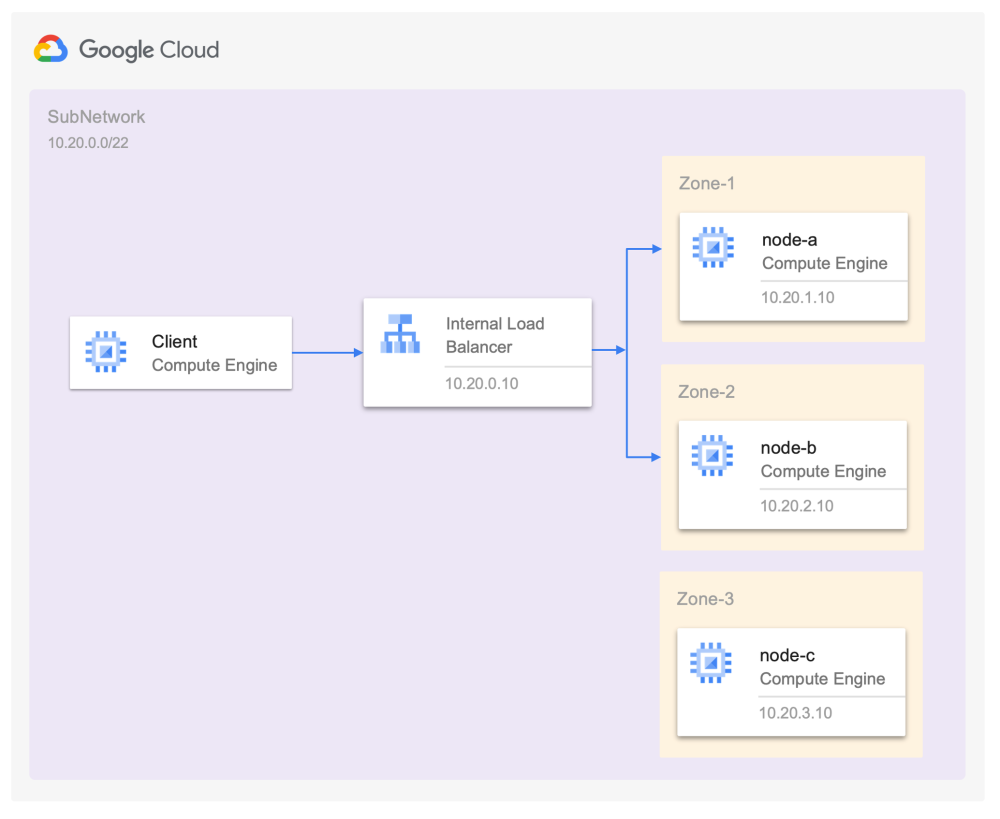
GCP Implement Load Balancing on Compute Engine Challenge Lab
The GCP challenge lab for implementing load balancing on Compute Engine helps users gain hands-on experience with setting up load balancers for instances. Key steps include:
- Create Instances: Deploy multiple VM instances in Compute Engine.
- Backend Configuration: Group instances into an instance group and attach to a backend service.
- Health Checks: Set up health checks to ensure backend availability.
- Frontend Configuration: Configure the frontend by attaching an external IP and setting up firewall rules.
GCP Can’t Connect Load Balancer External IP
One of the common issues is when GCP can’t connect load balancer external IP. This can occur due to:
- Missing firewall rules to allow traffic.
- Misconfigured backend services or health checks.
- DNS settings not pointing to the external IP.
Solution:
- Verify Firewall Rules: Ensure they allow traffic on ports like 80 (HTTP) and 443 (HTTPS).
- Check Health Checks: Use
gcloud compute backend-services get-healthto ensure backends are healthy. - Inspect Frontend Configurations: Confirm that the external IP is correctly mapped in the load balancer front end config GCP.For more information refer Can’t Connect Load BalancerGCP
Load Balancer Front End Config GCP
The frontend configuration involves defining how the load balancer interacts with incoming traffic. Steps include:
- Assign External IP: Reserve and assign an external IP to the frontend.
- Configure Protocols and Ports: Specify HTTP, HTTPS, or TCP protocols and define listening ports.
- Set up SSL Certificates (if applicable): For HTTPS load balancers, configure SSL certificates for secure communication.
GCP Can’t Connect Load Balancer to Kubernetes Services External IP
Another frequent challenge is when GCP can’t connect load balancer to Kubernetes services external IP. This issue often arises due to misconfigured Kubernetes services or ingress settings.
Solution:
- Service Type: Ensure the Kubernetes service type is
LoadBalancer.
Example:apiVersion: v1 kind: Service metadata: name: my-service spec: type: LoadBalancer ports: - port: 80 targetPort: 8080 selector: app: my-app - Ingress Rules: Check ingress configurations to route traffic correctly.
- Health Checks: Ensure health checks are defined for the backend pods.
For more, visit Kubernetes Networking Guide.
How to Use GCP Load Balancer in WordPress
Integrating a GCP load balancer with WordPress ensures optimal performance and availability.
Steps:
- Deploy WordPress: Set up WordPress on multiple Compute Engine instances or Kubernetes pods.
- Backend Service: Group WordPress instances into a backend service with health checks.
- Frontend Configuration:
- Assign an external IP to handle user requests.
- Use HTTP(S) Load Balancer for secure communication.
- Database Integration: Use Cloud SQL for database services and ensure instances are connected.
For a detailed tutorial, check Deploy WordPress on GCP.
Transition from GCP External Load Balancer to Internal Load Balancer
Switching from an external load balancer to an internal load balancer might be necessary for private network communication.
Steps:
- Create an Internal Load Balancer: Configure the backend and frontend to operate within the VPC.
- Update DNS Records: Update internal DNS to point traffic to the new internal IP.
- Test Communication: Verify connectivity and ensure that firewall rules permit internal traffic.
For guidance, visit GCP Internal Load Balancers.
gcp external load balancer to internal load balancer
Step 1: Understand Your Current Setup
- Review Backend Configuration: Identify the backend services currently attached to your external load balancer.
- Document Firewall Rules: Note the existing rules that allow public traffic.
- Analyze Application Dependencies: Determine which services need to communicate internally.
Step 2: Set Up the Internal Load Balancer
1. Create Backend Services
- Use existing backend instances or groups (e.g., managed instance groups or zonal instance groups).
- Configure health checks to ensure backend availability.
2. Reserve an Internal IP Address
- Allocate an internal IP address within your VPC subnet.
3. Configure Forwarding Rules
- Define rules to direct incoming traffic to your backend service.
For more details, check GCP Internal Load Balancer Setup.
Step 3: Update DNS Configuration
Update your private DNS to point traffic to the internal IP of the load balancer. This ensures services in the VPC can resolve the new internal address seamlessly.
Step 4: Adjust Firewall Rules
- Remove External Rules: Delete or disable firewall rules that allow traffic to the external IP.
- Add Internal Rules: Create new rules to allow traffic to the internal load balancer’s IP.
Step 5: Test the Configuration
- Verify Load Balancer Health
- Use
gcloud compute backend-services get-healthto ensure the backends are healthy.
- Use
- Check Traffic Routing
- Test connectivity from internal instances using tools like
curlortelnet.
- Test connectivity from internal instances using tools like
- Monitor Logs
- Enable Cloud Logging to monitor traffic and identify potential issues.
Tips for a Smooth Transition
- Gradual Migration
- Run both the external and internal load balancers simultaneously during the transition phase to avoid downtime.
- Centralized Monitoring
- Use Cloud Monitoring to track the performance of both load balancers during the transition.
- Documentation
- Maintain comprehensive documentation of your changes for easier debugging and future reference.
Best Practices for GCP Load Balancers
- Regular Monitoring
- Use Cloud Monitoring to track load balancer health and performance.
- Optimize Costs
- Avoid keeping unused load balancers to reduce unnecessary costs.
- Use Automation
- Leverage tools like Terraform for consistent infrastructure deployments.
- Ensure Security
- Implement SSL/TLS certificates for secure communication.
Conclusion
GCP load balancers are versatile tools for managing and optimizing traffic across various workloads, including Compute Engine instances, Kubernetes services, and platforms like WordPress. However, challenges such as GCP can’t connect load balancer external IP or configuring the load balancer front end config GCP require careful troubleshooting and adherence to best practices.
By understanding the different GCP load balancer types and their configurations, you can build resilient, scalable, and efficient applications. For further exploration:
- GCP Load Balancing Documentation
- Kubernetes Load Balancer Guide
- Deploy WordPress on GCP
- How to Create a Load Balancer on GCP
With the right setup, you can fully leverage the power of GCP load balancers to meet your business goals.