
Automate Your Build and Deployment Process
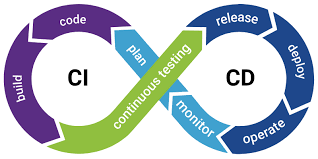
In modern software development, Continuous Integration (CI) and Continuous Deployment (CD) have become indispensable. CI/CD pipelines automate the software development lifecycle, enabling developers to deliver high-quality software at a faster pace. In this detailed guide, we’ll explore how to set up CI/CD pipelines with Jenkins, GitHub Actions, and GitLab CI/CD, accompanied by hands-on examples, icons, and official references for further learning.
What is CI/CD?
Continuous Integration (CI)
Continuous Integration automates code integration from multiple developers into a shared repository. It involves:
- Automated builds.
- Running test suites to catch errors early.
- Detecting integration issues quickly.
Continuous Deployment (CD)
Continuous Deployment automates the release of tested and validated code to production or staging environments. This reduces the time between development and deployment.
Benefits of CI/CD Pipelines
- Improved Code Quality:
- Automated tests catch bugs early.
- Ensures code adheres to standards.
- Faster Delivery:
- Automated pipelines reduce manual intervention.
- Frequent releases become achievable.
- Team Collaboration:
- Encourages collaboration between development and operations teams (DevOps).
- Enhanced Security:
- Integrates automated security scans.
For a deeper dive, refer to AWS’s guide to CI/CD.
Prerequisites for Setting Up CI/CD
Before setting up a CI/CD pipeline, ensure the following:
- A repository hosted on platforms like GitHub, GitLab, or Bitbucket.
- Access to a build tool such as Jenkins, GitHub Actions, or GitLab CI/CD.
- Containerization Tools like Docker (optional for advanced workflows).
- Programming language-specific dependencies, such as
npmfor Node.js ormavenfor Java.
Step-by-Step Guide to Setting Up CI/CD
We’ll explore CI/CD setup with three tools: Jenkins, GitHub Actions, and GitLab CI/CD.
1. automated build and deployment process using jenkins
Jenkins is an open-source automation tool widely used for CI/CD.
Step 1: Install Jenkins
- Install Jenkins on your server:
sudo apt update sudo apt install openjdk-11-jre wget -q -O - https://pkg.jenkins.io/debian/jenkins.io.key | sudo apt-key add - sudo sh -c 'echo deb http://pkg.jenkins.io/debian-stable binary/ > /etc/apt/sources.list.d/jenkins.list' sudo apt update sudo apt install jenkins - Access Jenkins at
http://<your-server-ip>:8080.
Step 2: Create a Jenkins Pipeline
- Install the Pipeline Plugin.
- Go to New Item > Pipeline.
- Define your pipeline in the
Jenkinsfile.
Sample Jenkinsfile for Node.js
pipeline {
    agent any
    stages {
        stage('Checkout') {
            steps {
                checkout scm
            }
        }
        stage('Build') {
            steps {
                sh 'npm install'
            }
        }
        stage('Test') {
            steps {
                sh 'npm test'
            }
        }
        stage('Deploy') {
            steps {
                sh 'npm run deploy'
            }
        }
    }
}
Step 3: Run the Pipeline
- Commit your
Jenkinsfileto your repository. - Trigger the pipeline from Jenkins.
For more details, visit the official Jenkins documentation.
2. Setting Up CI/CD with GitHub Actions
GitHub Actions integrates CI/CD workflows directly into GitHub repositories.
Step 1: Define a Workflow
- Create a
.github/workflows/main.ymlfile in your repository. - Add the following YAML configuration:
Sample GitHub Actions Workflow
name: Node.js CI/CD Pipeline

on:
  push:
    branches:
      - main

jobs:
  build:
    runs-on: ubuntu-latest
    steps:
      - name: Checkout Code
        uses: actions/checkout@v2

      - name: Set up Node.js
        uses: actions/setup-node@v2
        with:
          node-version: '16'

      - name: Install Dependencies
        run: npm install

      - name: Run Tests
        run: npm test

      - name: Deploy Application
        run: npm run deploy
Step 2: Commit and Push
- Commit the
.ymlfile to themainbranch. - GitHub Actions automatically triggers the workflow.
For additional workflows, refer to GitHub Actions documentation.
3. Setting Up CI/CD with GitLab CI/CD
GitLab CI/CD is a native CI/CD tool integrated with GitLab repositories.
Step 1: Define a .gitlab-ci.yml File
- Add a
.gitlab-ci.ymlfile to your repository.
Sample GitLab CI/CD Pipeline
stages:
  - build
  - test
  - deploy

build:
  stage: build
  script:
    - npm install

test:
  stage: test
  script:
    - npm test

deploy:
  stage: deploy
  script:
    - npm run deploy
Step 2: Commit and Push
- Commit the
.gitlab-ci.ymlfile to your repository. - GitLab automatically runs the pipeline.
Explore advanced features in the GitLab CI/CD documentation.
Automate Your Build and Deployment Process – Advance
1. Deployment Strategies
- Blue-Green Deployment: Switch traffic between two identical environments.
- Canary Deployment: Gradually roll out changes to a subset of users.
- Rolling Deployment: Incrementally update instances to minimize downtime.
2. Secrets Management
- Securely store API keys and credentials using:
- Jenkins Credentials Plugin.
- GitHub Secrets.
- GitLab CI/CD Variables.
3. Integrating Security Scans
- Integrate tools like:
- SonarQube for code quality analysis.
- OWASP ZAP for vulnerability scanning.
Real-World Example
Use Case: Automating Deployment for a Node.js Application.
- Tool: GitHub Actions.
- Workflow:
- Push code to GitHub.
- Trigger automated build and tests.
- Deploy to AWS S3 using the AWS CLI:
- name: Deploy to S3
  run: aws s3 sync ./build s3://your-bucket-name --delete
- Outcome:
- Automatic deployment to production on every push to
main.
- Automatic deployment to production on every push to
Best Practices
- Use Branch Protections:
- Protect
mainormasterbranches to ensure only tested code is deployed.
- Protect
- Monitor Pipelines:
- Use tools like Prometheus or Datadog to monitor pipeline performance.
- Optimize for Speed:
- Parallelize stages for faster execution.
- Rollback Plans:
- Always have a rollback mechanism in case of deployment failures.
Useful Links
- Jenkins Official Documentation
- GitHub Actions Guide
- GitLab CI/CD Documentation
- AWS DevOps Guide
- Automate Your Infrastructure with Terraform and Ansible
Conclusion
CI/CD pipelines are the backbone of modern software development, enabling teams to build, test, and deploy code faster and more reliably. By implementing CI/CD with tools like Jenkins, GitHub Actions, or GitLab CI/CD, you can automate repetitive tasks, reduce human errors, and enhance collaboration across teams.
Let us know in the comments how you’re automating your CI/CD workflows or if you need help with specific use cases.
Let me know if you’d like me to proceed with WordPress post #2 (Infrastructure Automation)!