

Configuring Backup for Azure App Services
Introduction
Backing up your Azure App Services and associated databases is a crucial step to ensure data integrity, disaster recovery, and business continuity. Azure provides a simple and effective way to configure and manage backups for your web apps, API apps, and mobile apps.
This guide provides a detailed step-by-step process for configuring backups in Azure App Services, including best practices, features, limitations, and troubleshooting tips.
Why Backups Are Important?
- Disaster Recovery: Ensures you can quickly recover from accidental deletions, misconfigurations, or malicious attacks.
- Business Continuity: Minimizes downtime by allowing you to restore apps and data promptly.
- Data Integrity: Provides a secure and reliable way to preserve critical data.
- Compliance Requirements: Helps meet industry standards and regulatory requirements for data protection.
Pre-Requisites
Before configuring backups for Azure App Services, ensure the following:
- Azure Subscription: An active Azure subscription with sufficient permissions (e.g., Owner or Contributor roles).
- Storage Account: A storage account with a blob container to store backup files.
- Azure App Service: The app service must be in the Standard, Premium, or Isolated pricing tier. Backups are not available for Free and Shared tiers.
Configuring Backup for Azure App Services
Step 1: Navigate to the Azure App Service
- Log in to the Azure Portal.
- In the search bar, type App Services and select your app from the list.
Step 2: Access the Backups Blade
- In the App Service menu, type Backups in the search bar or find it under the Settings section.
- Click on the Backups option to access the backup configuration screen.
Step 3: Configure Backup Settings
- Click on Configure to open the backup configuration pane.
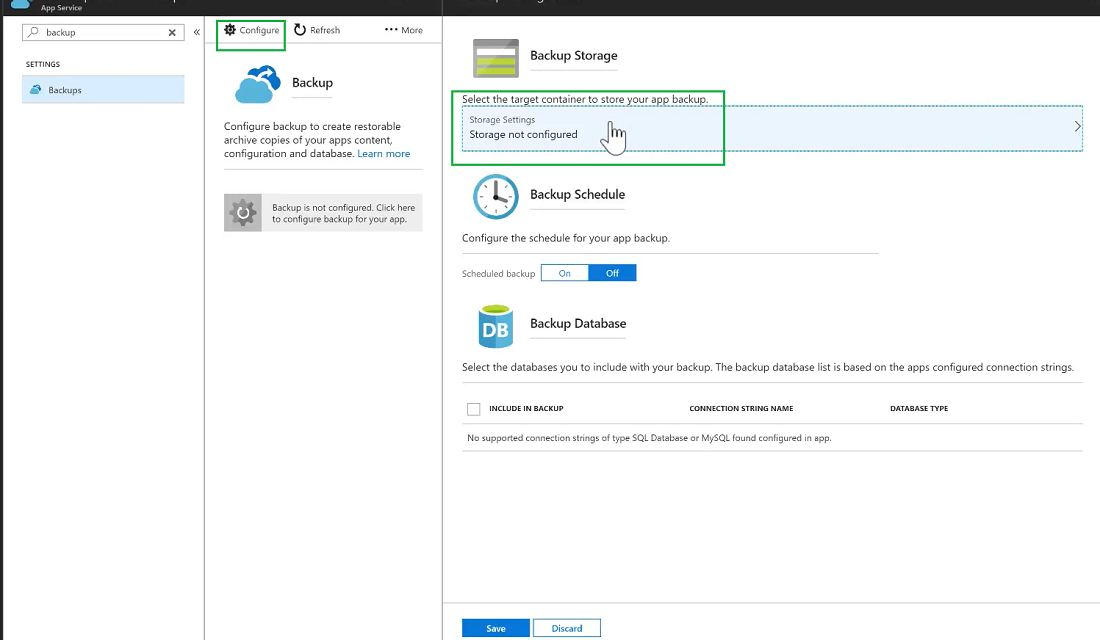
- Select a Storage Account:
- Choose an existing Storage Account or create a new one.
- Select a Blob Container where the backups will be stored.
- Enable Scheduled Backups:
- Toggle Schedule Backups to On.
- Set the backup frequency (e.g., daily, weekly) and specify the time.
- Include Database Backups (Optional):
- If your app uses a database (e.g., Azure SQL Database or MySQL), you can include it in the backup by providing the database credentials.
- Specify the database connection string and test the connection.

- Save Configuration:
- Click Save to finalize the configuration.
Step 4: Perform a Manual azure app service backup (Optional)
- On the Backups screen, click the Backup button to initiate a manual backup.
- Monitor the progress in the backup logs. Once completed, the backup will appear in the backup list.
Step 5: Restore a Backup
- On the Backups screen, select the backup you wish to restore.
- Click the Restore button.
- Choose one of the following options:
- Restore to the Same App: Overwrites the existing app with the backup data.
- Restore to a New App: Creates a new app instance using the backup data.
- Confirm the restore process and monitor its progress.
app service plan tier to configure backup service in azure
To configure the backup service for an Azure App Service, the App Service Plan must be at the Standard tier or higher. This means that the Basic or Free tiers do not support the backup feature.
Here are the supported tiers for backups:
- Standard Tier: Includes 1 backup daily.
- Premium Tier: Includes more advanced scaling options and additional daily backups.
- Isolated Tier: Provides the most resources and also supports backup services with additional features.
Key Notes:
- Frequency: The number of backups depends on the App Service Plan tier.
- Storage: Backups are stored in a designated Azure Storage Account.
- Custom Schedules: Premium and higher tiers allow for custom schedules and more frequent backups.
- Manual Backups: Supported in Standard and higher tiers, in addition to scheduled backups.
If you’re planning to use backups for a production-grade application, ensure your App Service Plan is at least Standard tier. For more extensive backup capabilities or larger-scale apps, consider upgrading to Premium or Isolated tiers.
azure app service backup powershell
You can manage Azure App Service backups using PowerShell. Below are the key steps to enable, configure, and manage backups for an Azure App Service using the Azure PowerShell module.
1. Prerequisites
- Install the latest Azure PowerShell module:
Install-Module -Name Az -AllowClobber -Scope CurrentUser - Log in to your Azure account:
Connect-AzAccount
2. Enable Backups for an App Service
Example Script
# Define variables
$resourceGroupName = "YourResourceGroupName"
$appServiceName = "YourAppServiceName"
$storageAccountName = "YourStorageAccountName"
$containerName = "backup-container"

# Get the storage account key
$storageAccountKey = (Get-AzStorageAccountKey -ResourceGroupName $resourceGroupName -Name $storageAccountName)[0].Value

# Create a context for the storage account
$storageContext = New-AzStorageContext -StorageAccountName $storageAccountName -StorageAccountKey $storageAccountKey

# Enable backups for the App Service
Set-AzWebAppBackupConfiguration -ResourceGroupName $resourceGroupName `
                                 -Name $appServiceName `
                                 -StorageAccountUrl ($storageContext.BlobEndpoint + $containerName) `
                                 -FrequencySlotSetting 1 `
                                 -RetentionPeriodInDays 30
3. Trigger a Manual Backup
To trigger an on-demand backup for the App Service:
# Trigger a backup
$backupJob = Start-AzWebAppBackup -ResourceGroupName $resourceGroupName -Name $appServiceName

# Check the status of the backup
Get-AzWebAppBackup -ResourceGroupName $resourceGroupName -Name $appServiceName -BackupId $backupJob.Id
4. View Backup Configuration
To view the current backup configuration:
Get-AzWebAppBackupConfiguration -ResourceGroupName $resourceGroupName -Name $appServiceName
5. Restore an App Service from Backup
To restore an App Service from a specific backup:
# Define the backup ID (retrieve from the previous step)
$backupId = "BackupIdFromPreviousCommand"

# Restore the App Service
Restore-AzWebAppBackup -ResourceGroupName $resourceGroupName `
                       -Name $appServiceName `
                       -BackupId $backupId `
                       -Overwrite
6. List All Backups
To list all backups for an App Service:
Get-AzWebAppBackup -ResourceGroupName $resourceGroupName -Name $appServiceName
Notes:
- Storage Account: Backups are stored in a container within the specified storage account.
- Retention: Adjust the
-RetentionPeriodInDaysparameter to manage how long backups are retained. - Frequency: The
-FrequencySlotSettingparameter determines the frequency of automatic backups (daily by default).
This script allows you to automate backup management for Azure App Services using PowerShell. Let me know if you need help customizing these commands!
Features of Azure App Service Backups
- Automated Backups:
- Schedule backups at regular intervals to ensure data is consistently backed up.
- Database Integration:
- Backup Azure SQL Databases or MySQL databases associated with the app.
- Downloadable Backups:
- Download backup files for local storage or compliance purposes.
- Restore Options:
- Restore backups to the same app or a new app.
- Customizable Retention Policy:
- Specify how long backups should be retained in the storage container to manage costs.
Best Practices for Azure App Service Backups
- Test Your Backups Regularly:
- Periodically restore backups in a test environment to verify their integrity.
- Use a Separate Storage Account:
- Store backups in a separate storage account for enhanced security and reliability.
- Implement a Retention Policy:
- Configure a retention policy to automatically delete old backups and save storage costs.
- Monitor Backup Jobs:
- Use Azure Monitor or Application Insights to track backup successes and failures.
- Secure Your Storage Account:
- Enable encryption and restrict access to your blob container to prevent unauthorized access.
- Document the Process:
- Maintain documentation for backup and restore processes to simplify recovery during emergencies.
Limitations of Azure App Service Backups
- Pricing Tier Restrictions:
- Only available for Standard, Premium, and Isolated tiers.
- Storage Costs:
- Backups are stored in Azure Blob Storage, and storage costs apply.
- Limited Backup Frequency:
- Backup frequency is restricted to daily intervals at most.
- Manual Intervention for Configuration:
- Database credentials and connection strings must be manually configured.
Troubleshooting Tips
- Backup Fails to Start:
- Ensure the App Service Plan is in the correct pricing tier.
- Verify that the storage account and blob container are accessible.
- Database Backup Fails:
- Check the connection string and database credentials for accuracy.
- Test connectivity between the app and the database.
- Restore Errors:
- Ensure the target app has sufficient resources and is in a supported pricing tier.
- Slow Backups:
- Large apps or databases may take longer to back up. Optimize by reducing unnecessary files and data.
Benefits of Azure App Service Backups
- Ease of Use:
- Simple and intuitive configuration directly in the Azure Portal.
- Improved Reliability:
- Protects against accidental deletions, misconfigurations, and data loss.
- Time-Efficient:
- Automates regular backups, saving administrative effort.
- Enhanced Flexibility:
- Offers multiple restore options to meet diverse recovery needs.
Conclusion
Configuring backups for Azure App Services is a vital step in ensuring data protection and business continuity. With Azure’s built-in tools, you can easily set up automated backups, include database backups, and restore data when needed. By following best practices and monitoring the backup process, you can minimize downtime, protect critical applications, and maintain a robust disaster recovery plan.
For more details, visit the Azure App Service Documentation.
Learn More about: Azure Blob Storage Backup Automation