

How to Create a Service Account in GCP
 A service account in GCP is essential for enabling Site24x7 to authenticate, perform resource discovery, and monitor cloud services. This guide walks you through the steps to create a service account and generate a JSON key.
Introduction
Service accounts in Google Cloud Platform (GCP) are a crucial part of managing secure, automated interactions between your applications and GCP services. They allow applications, virtual machines (VMs), and other cloud resources to interact with APIs, services, and resources securely—without requiring user intervention.
Unlike user accounts, service accounts are not tied to a specific person but rather to applications or workloads. This allows them to operate autonomously with the permissions granted to them, ensuring secure and efficient operations.
What is a Service Account?
A service account is a special type of Google account intended for non-human interaction. It is used by applications and virtual machines to authenticate and access Google Cloud services securely.
For example:
- A VM instance may use a service account to read data from Cloud Storage.
- An application running in Kubernetes might need to interact with Google Cloud APIs.
- Automation tools may use service accounts to schedule jobs or retrieve data.
Service accounts operate behind the scenes, acting as the identity of the application, enabling it to interact with APIs and services without manual login.
Why Use Service Accounts?
- Automation
Service accounts automate tasks by allowing apps and VMs to communicate with GCP services securely. - Security
They ensure that applications have only the permissions required to perform their tasks, following the principle of least privilege. - Granular Access Control
Service accounts enable administrators to grant and manage specific permissions through IAM (Identity and Access Management). - Non-Human Identity
Since service accounts are not tied to humans, there is no risk of losing access if an employee leaves. - Audit and Monitoring
All interactions by service accounts are logged in GCP’s audit logs, providing transparency and traceability.
How Service Accounts Work
When a service account interacts with GCP services, it uses cryptographic keys to authenticate itself. This key comes in the form of a JSON file, which is downloaded during service account creation.
The service account:
- Sends an authenticated request to Google Cloud services using the JSON key.
- Receives tokens that authorize its access to specific resources.
- Uses IAM permissions to determine what services or resources it can interact with.
Types of Service Accounts
- User-Managed Service Accounts
- Created and managed by users through the IAM console or
gcloudCLI. - Can be assigned to VMs, applications, and services.
- Created and managed by users through the IAM console or
- Google-Managed Service Accounts
- Automatically created by GCP to run specific services like App Engine, Compute Engine, and Cloud Functions.
- Users cannot delete these but can adjust their permissions.
- Default Service Accounts
- Created by default when you enable APIs like Compute Engine or App Engine.
- Useful for quick start projects, but often have broader permissions.
Step-by-Step Guide How to Create a Service Account in GCP
1. Log in to Google Cloud Console
Visit the Google Cloud Console and log in with your credentials.
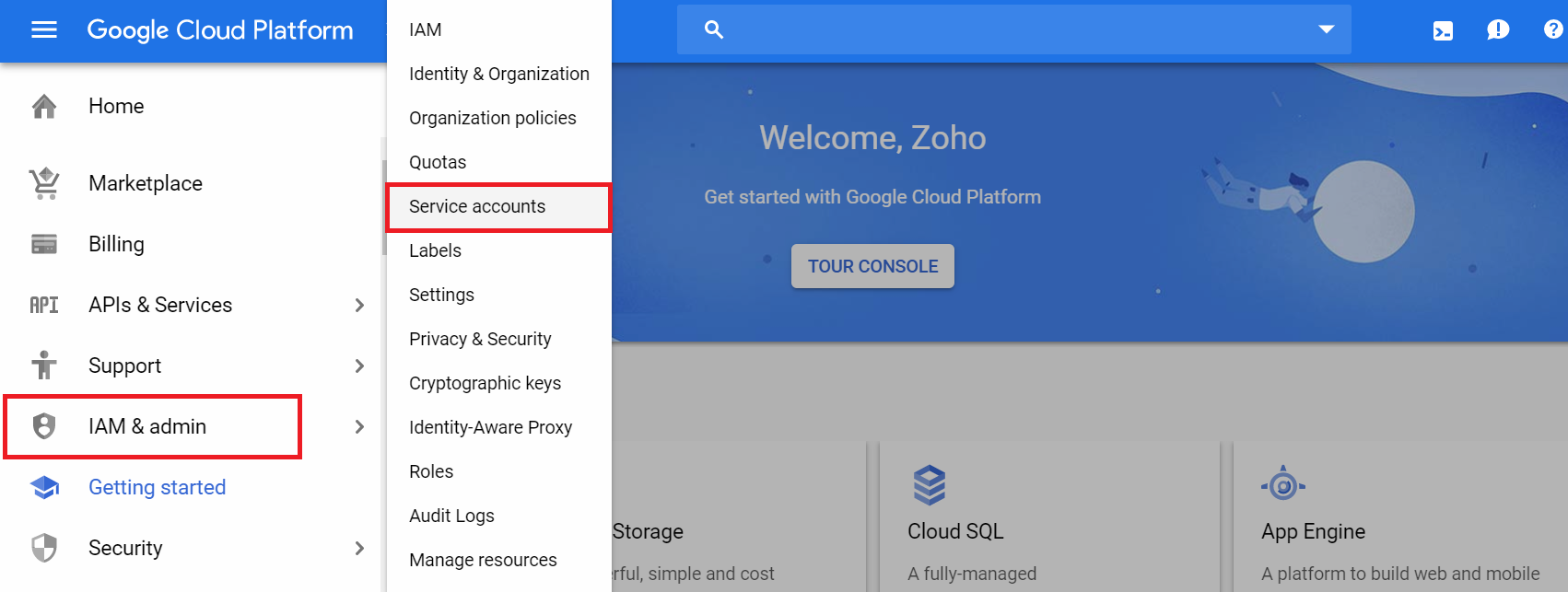
2. Access IAM & Admin
- Click the ☰ hamburger icon at the top left corner.
- Hover over IAM & Admin and select Service Accounts.
3. Create a New Service Account
- Click the + Create Service Account button at the top.

- Fill in the following details:
- Service Account Name: Choose a descriptive name (e.g.,
my-app-service). - Service Account ID: Auto-generated but can be customized.
- Description: Add a brief description of the account’s purpose.
- Service Account Name: Choose a descriptive name (e.g.,

- Click Create and Continue.
https://linuxcloudservers.com/wp-content/uploads/2024/12/s4.png
4. Assign IAM Roles
- Under Grant this Service Account Access, choose a role for the account:
- Viewer – Read-only access.
- Editor – Read and write access.
- Owner – Full administrative access.
- Or choose custom roles depending on your requirements.
- Click Continue.

For advanced monitoring, refer to the Site24x7 GCP permissions documentation.
5. Generate a JSON Key
- Click + Create Key under the service account details.

- Choose Key Type as JSON and click Create.

- The JSON key will automatically download to your device. Store this securely as it will be required for API authentication.
Note: The JSON key file contains sensitive information. Store it securely and avoid sharing it unnecessarily.
Verifying the Service Account
After creating the service account:
- Return to the IAM & Admin → Service Accounts section.
- Confirm the service account appears in the list.
- Click on the service account to review assigned roles and generated keys.
Assigning Service Account to a Project
- Go to IAM & Admin → IAM.
- Click + Add to grant access to a project.
- Enter the service account email.
- Select the Viewer role or any other necessary permissions.
- Click Save.
Assigning Service Accounts to Resources
- VM Instances
- When launching a VM, under the Management section, select the service account from the dropdown.
- Cloud Functions
- When creating a Cloud Function, select the service account under the Runtime Service Account option.
- Kubernetes
- Use Workload Identity to bind Kubernetes services to GCP service accounts securely.
Key Concepts to Understand
- IAM Roles and Permissions: Roles define what a service account can do. Permissions are bundled into roles.
- Key Management: A JSON private key is generated for each service account. This key is used for authentication.
- Principle of Least Privilege: Only grant the minimum permissions necessary for the service account to operate.
- Token Generation: Service accounts generate OAuth 2.0 tokens to authenticate and authorize API requests.
Common Use Cases for Service Accounts
- Running Applications on Compute Engine
Service accounts allow VM instances to securely access APIs and resources without user interaction. - Data Pipelines
Use service accounts to move data between Cloud Storage, BigQuery, and external services. - CI/CD Pipelines
Automate deployments and infrastructure provisioning using service accounts in pipelines. - Kubernetes Applications
GKE (Google Kubernetes Engine) applications use service accounts to manage workloads that require API interaction.
Best Practices for Service Accounts
- Follow Least Privilege
Assign only the permissions necessary to avoid potential security vulnerabilities. - Rotate Keys Regularly
Periodically generate new JSON keys to reduce exposure in case of key leakage. - Monitor and Audit
Use Cloud Logging and Monitoring to track service account activity. - Restrict JSON Key Downloads
Limit who can generate and download keys to reduce the risk of unauthorized use. - Delete Unused Service Accounts
Regularly audit and remove unused service accounts to minimize security risks.
Conclusion
Service accounts in Google Cloud Platform are essential for securely automating interactions between applications and services. By creating and managing service accounts effectively, you can ensure seamless, secure operations while minimizing risks.
Following best practices and properly managing IAM roles ensures that your cloud environment remains secure and scalable. For more detailed information, visit the official GCP IAM documentation.