

React js deploy Nginx in Azure Web App
In today’s digital landscape, React.js has emerged as one of the most popular front-end frameworks for building modern web applications. Once the application is developed, hosting it efficiently becomes a top priority. Microsoft Azure and AWS provide robust solutions to deploy web applications, including Azure Web Apps and AWS Elastic Beanstalk. This blog will walk you through the process of deploying a React.js application with Nginx on Azure Web App and compare it with Elastic Beanstalk and App Service deployment.
Learn more about React.js and its features
Prerequisites
Before diving into the deployment process, ensure you have the following:
- A React.js application ready for production.
- A Microsoft Azure account. Get started with Azure
- Installed Azure CLI on your system. Azure CLI Documentation
- Basic knowledge of Nginx and server configuration. Introduction to Nginx
- Installed Node.js and npm on your local machine. Download Node.js
- Optional: An AWS account to understand the comparison with Elastic Beanstalk. AWS Free Tier
Step 1: Preparing the React.js Application for Production
React applications need to be built and optimized before deployment. Follow these steps to prepare:
- Build the Application:Run the following command to create an optimized production build:
npm run buildThis generates a
build/folder containing your production-ready files. - Verify the Build:Use a static server to ensure everything works correctly:
npx serve -s buildOpen your browser and navigate to
http://localhost:5000to verify the build.
Step 2: Setting Up Azure Web App
Azure Web App is a fully managed service for hosting web applications. Follow these steps to set it up:
- Create an Azure Web App:
- Log in to your Azure portal. Azure Portal Login
- Navigate to “App Services” and click on “Create”.
- Provide the necessary details such as:
- Resource Group: Create a new one or use an existing one.
- Name: Choose a unique name for your app.
- Runtime Stack: Select “Node.js”.
- Region: Choose the region closest to your users.
- Click “Review + Create” and then “Create”.
- Install Azure CLI (if not already installed):
npm install -g azure-cli - Log In to Azure:
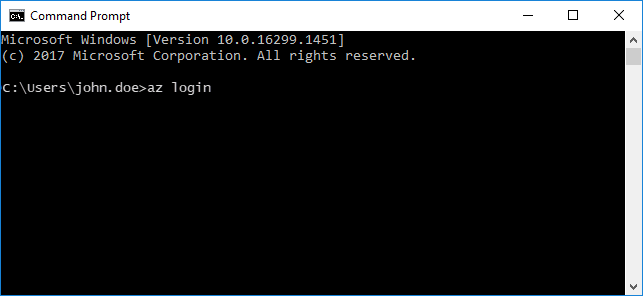
az login - Deploy the Application Using Azure CLI:Zip your build folder:
zip -r build.zip buildDeploy the zip file to your Azure Web App:
az webapp deployment source config-zip --resource-group <Resource-Group-Name> --name <App-Name> --src build.zipReplace
<Resource-Group-Name>and<App-Name>with your actual resource group and app name. - Verify Deployment:Visit the URL
https://<App-Name>.azurewebsites.netto verify that your React app is live.
Step 3: Configuring Nginx
While Azure Web App supports various runtimes, configuring Nginx enhances performance and allows for better caching and routing.
- Create a Custom Dockerfile:To use Nginx, create a
Dockerfilein your React project’s root directory:# Use an official Nginx image FROM nginx:alpine # Copy the build output to Nginx's HTML folder COPY build/ /usr/share/nginx/html # Copy custom Nginx configuration COPY nginx.conf /etc/nginx/nginx.conf # Expose port 80 EXPOSE 80 # Start Nginx server CMD ["nginx", "-g", "daemon off;"] - Create a Nginx Configuration File:Create a
nginx.conffile in the root directory:server { listen 80; location / { root /usr/share/nginx/html; index index.html; try_files $uri /index.html; } }This configuration ensures that all routes are redirected to
index.html, which is essential for single-page applications (SPAs). - Build the Docker Image:Use Docker to build your custom image:
docker build -t react-nginx . - Push the Image to Azure Container Registry:
- Create a Container Registry in Azure.
- Tag your image:
docker tag react-nginx <Azure-Registry-Name>.azurecr.io/react-nginx - Log in to Azure Container Registry:
az acr login --name <Azure-Registry-Name> - Push the image:
docker push <Azure-Registry-Name>.azurecr.io/react-nginx
- Deploy the Docker Container:Update the Azure Web App to use the custom image:
az webapp create --resource-group <Resource-Group-Name> --plan <App-Service-Plan> --name <App-Name> --deployment-container-image-name <Azure-Registry-Name>.azurecr.io/react-nginx - Verify Deployment:Visit the URL to confirm the React app is running behind Nginx.
Comparison: Azure Web App vs. AWS Elastic Beanstalk vs. App Service Deployments
When deploying React applications, Azure Web App, AWS Elastic Beanstalk, and Azure App Services offer distinct advantages and drawbacks. Here’s a comparison:
1. Azure Web App
- Pros:
- Fully managed platform.
- Easy integration with Azure services like ACR, databases, and monitoring.
- Scalable with App Service Plans.
- Built-in support for CI/CD pipelines.
- Cons:
- Requires some learning curve for Docker-based deployments.
- Slightly costlier than AWS for similar configurations.
2. AWS Elastic Beanstalk
- Pros:
- Simple to deploy with minimal configuration.
- Automatic scaling and health monitoring.
- Strong community support and documentation.
- Cons:
- Limited to AWS ecosystem.
- Less flexibility with Nginx customizations compared to Azure.
3. App Service Deployments (Azure)
- Pros:
- Optimized for Azure’s ecosystem.
- Preconfigured runtimes, reducing manual setup.
- Smooth integration with GitHub Actions and DevOps.
- Cons:
- Can become complex for larger applications requiring custom configurations.
Advanced Scenarios for React js deploy Nginx in Azure Web App
1. CI/CD with GitHub Actions
To automate the deployment, create a workflow.yml file in your GitHub repository:
name: Deploy to Azure

on:
  push:
    branches:
      - main

jobs:
  build-and-deploy:
    runs-on: ubuntu-latest

    steps:
    - name: Checkout code
      uses: actions/checkout@v2

    - name: Set up Node.js
      uses: actions/setup-node@v2
      with:
        node-version: '16'

    - name: Install dependencies
      run: npm install

    - name: Build project
      run: npm run build

    - name: Deploy to Azure Web App
      uses: azure/webapps-deploy@v2
      with:
        app-name: <App-Name>
        slot-name: production
        publish-profile: ${{ secrets.AZURE_WEBAPP_PUBLISH_PROFILE }}
2. Monitoring and Logging
- Use Azure Monitor for real-time performance metrics. Azure Monitor
- Enable Application Insights for detailed application logs. Application Insights Documentation
3. Scaling
Azure Web App supports manual and auto-scaling. Configure scaling options under the “Scale Out (App Service Plan)” section in the Azure portal. Scaling in Azure App Service
Conclusion
Deploying a React.js application with Nginx on Azure Web App offers excellent scalability and performance. By leveraging Azure’s ecosystem, you can streamline deployments and monitor applications effectively. Compared to AWS Elastic Beanstalk, Azure Web App provides better integration with Azure’s container services but comes with a slightly higher learning curve for Docker-based deployments.
Choose the platform that best suits your application’s needs, and enjoy the flexibility of modern cloud hosting.
Explore More Azure Resources
Know more on how to Create Azure Web App