

🛠️ How to Partition and Format Disk Drives on Linux 🛠️
🔧 Formatting and partitioning disks is a key aspect of Linux administration. It allows you to prepare storage media, address space issues, or wipe a filesystem clean.
📘 This guide will walk you through the steps to partition and format disks for common Linux administration tasks.
🔍 What is Disk Formatting in Linux?
Disk formatting prepares a storage partition for use. Understanding disk formatting can help in managing large data assets effectively.
Here are some of the popular filesystems for Linux:
- 🗄️ Ext4: Common default filesystem on many Linux distributions. Supports file sizes up to 16TB and volumes up to 1 EB.
- 🪟 NTFS – Developed by Microsoft, with support added in Linux kernel version 5.15.
- 💾 FAT32 – Older filesystem, but compatible with most operating systems, supporting a max file size of 4GB and volume of 2TB.
🗂️ What is Partitioning in Linux?
Partitioning creates logical boundaries on storage devices, such as HDDs, SSDs, USB drives, and SD cards. This separation is helpful for tasks like limiting filesystem growth or installing multiple operating systems.
🔨 How to Partition and Format Disk Drives on Linux
Let’s get started with partitioning and formatting disks on a Linux system.
📋 Prerequisites
- 🔑 Access to a Linux terminal (we’re using Ubuntu 22.04 LTS)
- 🔒 sudo/root privileges
- 💽 A disk ready to partition and format (backups recommended)
🔍 How to View Disks in Linux
To list available disks, use:
fdisk -l | grep "Disk /"For a more detailed view:
lsblk -I 8 -d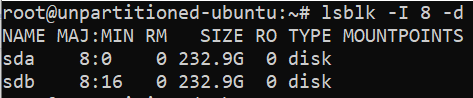
📊 How to View Existing Partitions in Linux
To list existing partitions, use:
lsblk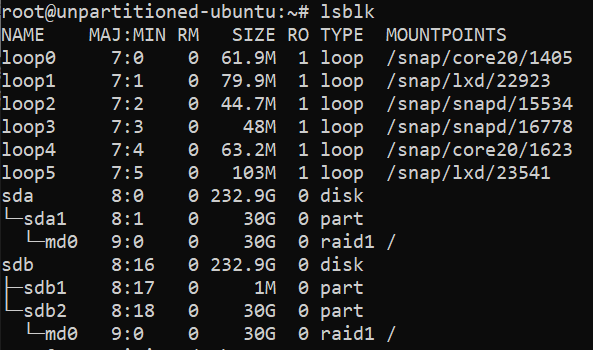
🔧 How to Partition a Disk in Linux
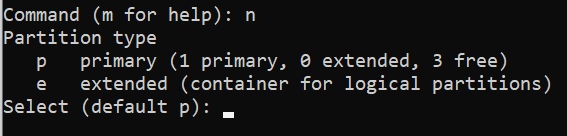
To partition disks, we’ll use the fdisk utility:
fdisk /dev/sda
Type n to create a new partition and follow the prompts.
💾 How to Format a Disk in Linux
To format your partition:
mkfs.ext4 /dev/sda2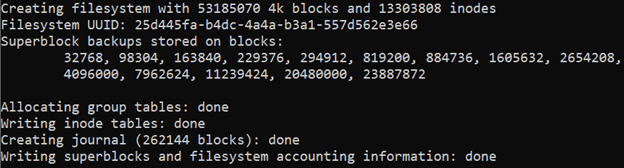
For NTFS or FAT32, use:
mkfs.ntfs /dev/sda2
mkfs.fat -F 32 /dev/sda2
🖇️ How to Mount a Disk in Linux
Create a mount point:
mkdir /var/cherry