
How to Use Cron in Ubuntu
Job scheduling applications are designed to carry out repetitive tasks as defined in a schedule based on time and event conditions. In this article, you will learn how to install and start using Cron – the most popular Linux workload automation tool that is widely used in the Linux community.
What is Cron?
Cron is a Linux job scheduler used to set up tasks to run periodically at a fixed date or interval. Cron jobs are specific commands or shell scripts that users define in the crontab files. These files are then monitored by the Cron daemon, and jobs are executed on a pre-set schedule.
Prerequisites
To follow this guide, you should have:
- A machine with Ubuntu 20.04 installed and root access privileges.
- Basic Linux command-line experience.
Install Cron
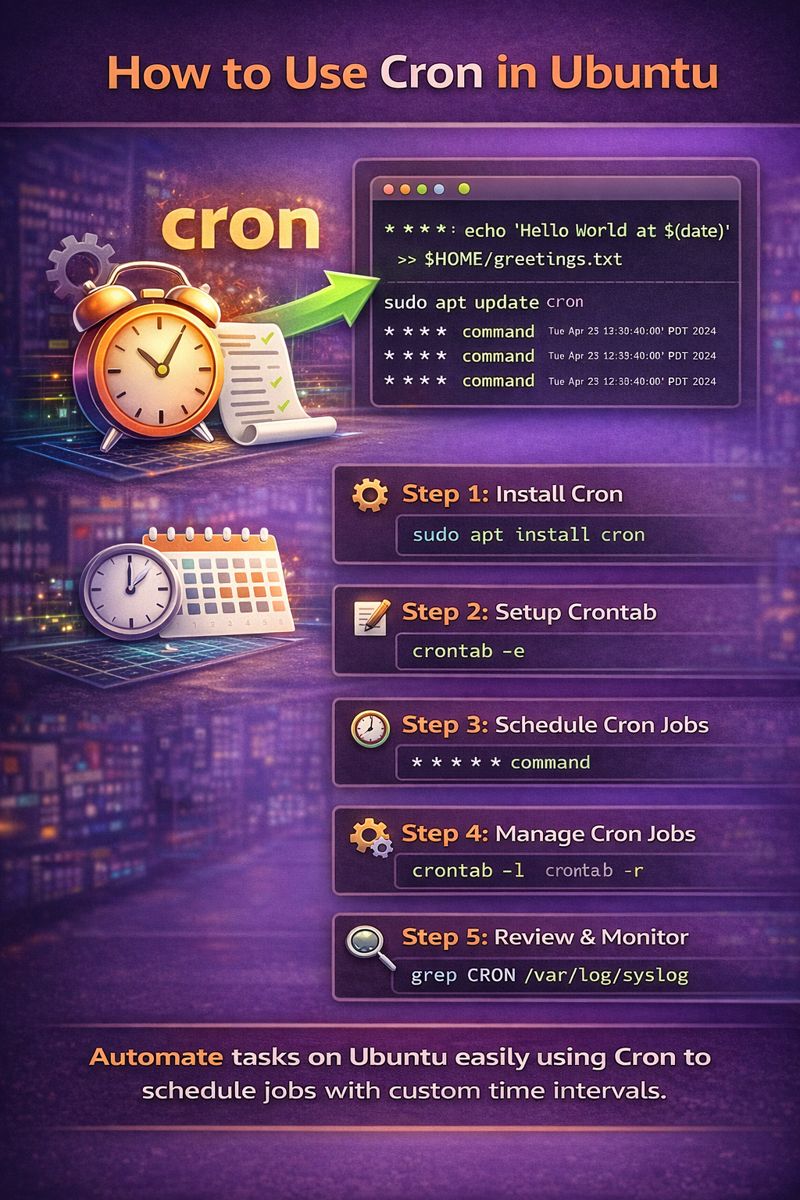
Most often, Cron is installed on your Ubuntu machine by default. If it isn’t, you can install it with:
sudo apt update
sudo apt install cron
Now you have the latest version of Cron installed on your machine.
Understand How Cron Works
Cron jobs are commands or shell scripts referenced in crontab files. These files are loaded into memory and monitored for scheduled actions. Cron wakes up every minute to check if any command needs to be executed.
Pro Tip: Cron assumes your system runs 24/7. For systems not online continuously, consider using anacron for time-based tasks.
Setup Your First Cron Job
Each Cron job is specified in a crontab – a configuration file, also known as the Cron table. To create your first crontab, use:
crontab -eIf you’re creating a crontab for the first time, select your default text editor. Then add a new Cron job:
* * * * * echo “Hello World at $(date)” >> $HOME/greetings.txtThis command appends the current time to a greetings.txt file in your home directory every minute. To check the output, use:
tail ~/greetings.txtUnderstand Cron Job Syntax
Each Cron task is written as a Cron expression with two parts: the time schedule and the command. The syntax is:
[minute] [hour] [day of month] [month] [day of week] [command]Allowed values:
| Field | Allowed values |
|---|---|
| minute | 0-59 |
| hour | 0-23 |
| day of month | 1-31 |
| month | 1-12 (or JAN-DEC) |
| day of week | 0-6 (or SUN-SAT) |
Special characters can further define schedules:
*– every allowed value0-5– range of values0,1,2,3,4,5– list of values*/2– steps (every 2 units)@reboot– run at system startup
Manage Crontab Configuration Files
Manage User-owned Crontab Files
Users have their own crontab files stored in the spool area:
ls /var/spool/cron/crontabsUse crontab -e to edit user-specific crontabs and crontab -l to list crontab contents. To remove your crontab:
crontab -rManage System-wide Crontab Files
System-wide crontabs are in /etc/crontab and mainly used by system services. Access the main system crontab:
vim /etc/crontabThis file contains environment variables and Cron tasks for daily, weekly, and monthly tasks. For instance, place scripts in /etc/cron.hourly/ for hourly execution.
To create a simple script to log Bitcoin prices every hour:
vim /etc/cron.hourly/get_bitcoin_price#!/usr/bin/bash
result=$(curl ...)
bitcoin_price=$(jq -r '.data.amount' <<< ${result}) echo "Bitcoin price is $bitcoin_price USD on $(date)" >> $HOME/bitcoin_prices.txtMake the script executable:
chmod u+x /etc/cron.hourly/get_bitcoin_priceManage Cron Output
Cron job output is sent to the owner’s local mailbox in /var/mail/. Change the output email by setting MAILTO in your crontab:
MAILTO=johnSend Output to an External Email
To send output to an external email, set MAILTO as follows:
[email protected]Manage Cron Logs
Cron logs are stored in /var/log/syslog. To view them:
grep CRON /var/log/syslogFor convenience, create a dedicated cron log file:
vim /etc/rsyslog.d/50-default.confUncomment the line:
cron.* /var/log/cron.logRestart rsyslog:
systemctl restart rsyslogMonitor Cron Jobs With Cronitor
Monitoring many Cron jobs can be challenging. Tools like Cronitor capture the status and output of every Cron job. To start monitoring with Cronitor:
cronitor discoverUse Cases
Here are practical real-world use cases you can add to your “How to Use Cron in Ubuntu”
1. Automated Server Backups
Cron is widely used to automate daily or hourly backups.
Use case:
Back up your website, database, or files every night.
0 2 * * * tar -czf /mnt/backup/website_$(date +\%F).tar.gz /var/www
This runs every day at 2 AM and creates a compressed backup.
2. Database Backups
Cron is perfect for automating MySQL or PostgreSQL dumps.
0 */6 * * * mysqldump -u root -pPASSWORD dbname > /mnt/backup/db.sql
This backs up the database every 6 hours without manual work.
3. Log Rotation & Cleanup
Servers generate huge log files. Cron keeps disk usage under control.
0 0 * * * find /var/log -type f -name "*.log" -mtime +7 -delete
Deletes logs older than 7 days every midnight.
4. Disk Space Monitoring
Cron can alert you when disk usage crosses a threshold.
*/30 * * * * df -h | grep "/dev/sda1" | awk '{ if($5+0 > 80) print "Disk space critical" }'
Checks disk usage every 30 minutes.
5. Restart Failed Services Automatically
Ensure uptime of critical services like Nginx, Docker, or MySQL.
*/5 * * * * systemctl is-active nginx || systemctl restart nginx
Restarts Nginx if it crashes.
6. Sync Files to Cloud Storage (AWS S3 / GCP)
Automatically push logs or backups to the cloud.
*/10 * * * * aws s3 sync /var/log s3://mybucket/server-logs
Uploads logs every 10 minutes.
7. Auto-Clear Cache & Temp Files
Improve server performance by cleaning temp folders.
0 */4 * * * rm -rf /tmp/*
Runs every 4 hours.
8. Health Checks & Alerts
Monitor applications or APIs.
*/5 * * * * curl -f https://myapp.com/health || echo "App down" >> /var/log/app_health.log
Runs every 5 minutes.
9. Generate Reports Automatically
Cron can generate daily or weekly reports.
0 1 * * * python3 /home/user/generate_report.py
Creates reports every day at 1 AM.
10. Update & Patch Automation
Keep systems secure.
0 3 * * 0 apt update && apt upgrade -y
Runs every Sunday at 3 AM.
Why These Use Cases Matter
Cron is not just a scheduler — it is the backbone of:
- Server automation
- Security patching
- Monitoring
- Disaster recovery
- Compliance reporting
In production environments, Cron quietly runs thousands of jobs every day keeping systems alive.
Conclusion
Cron is a powerful tool for automating repetitive tasks. After completing this guide, you now have a solid understanding of how to use Cron to schedule tasks on Linux. For more details, refer to the official Cron documentation page.