

How to Configure Ubuntu Firewall with UFW
Introduction
A firewall is a security system for networks that monitors all incoming and outgoing traffic. It permits or blocks data packets based on predefined security rules.
If you are running a production system, it is vital for you to understand how to configure a firewall. Firewall-protected systems are less likely to get infected by harmful information because they are less exposed to the Internet, as incoming and outgoing traffic is strictly filtered according to the security rules.
What is UFW?
UFW, also called the Uncomplicated Firewall, is a front-end framework that provides a simple interface for using the iptables utility to manage netfilter – a default Linux kernel packet filtering system. It is a built-in firewall system for Ubuntu 20.04 that simplifies complicated iptables commands and allows you to create basic firewall configurations more easily.
UFW uses a command-line interface with a small number of simple commands. It supports all the basic firewall rules, various network protocols, logging, and many more features. You may check an extensive list of features in the official UFW documentation.
How to Configure Ubuntu Firewall with UFW – step sy step
Prerequisites
To configure UFW, you need to have the following:
- Ubuntu 20.04 system with root privileges
- Basic knowledge of the command-line interface (CLI)
Note: This tutorial is applicable to Ubuntu 20.04 and other LTS versions. Early versions of UFW have been available since Ubuntu 12.04.
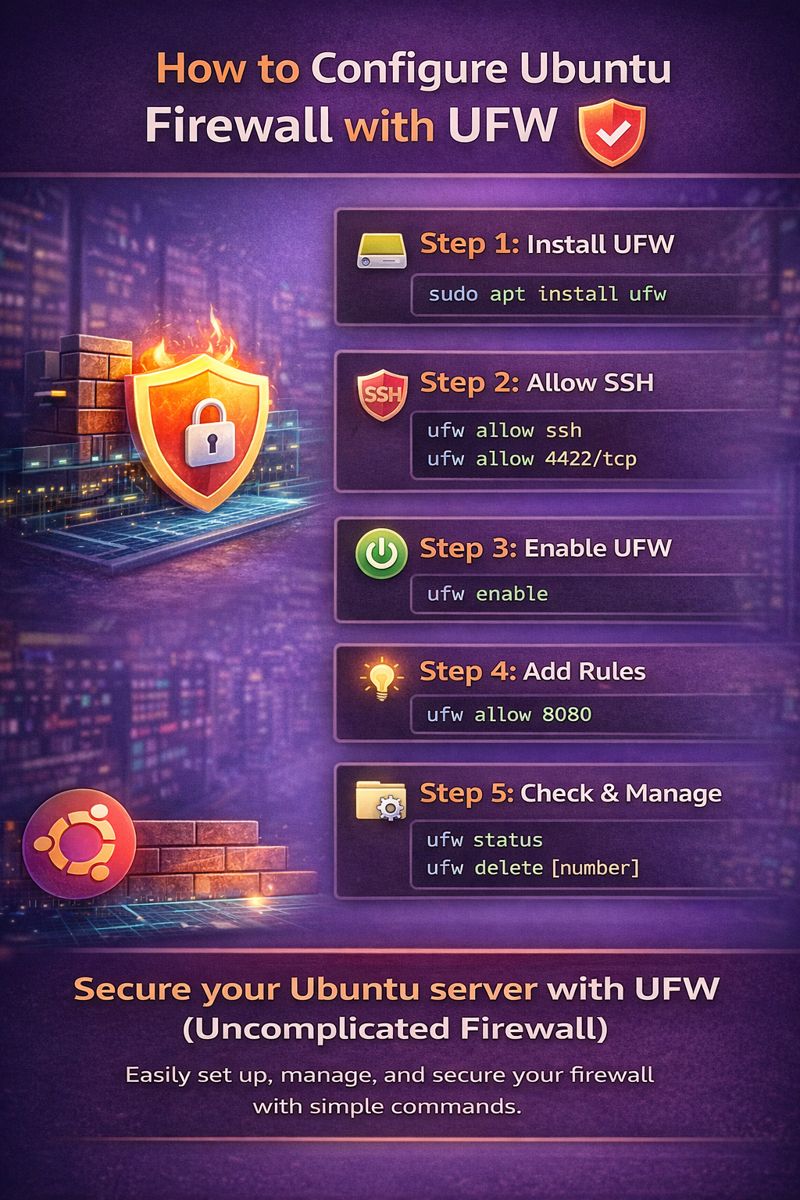
Install UFW Firewall
UFW comes pre-installed with the Ubuntu operating system. However, you can make sure that you have the latest version by running:
sudo apt install ufwAfter installation, check the status of UFW with:
ufw statusBy default, UFW is inactive. We will enable it after making some important changes.
UFW Default Firewall Policies
When starting with UFW, it’s a good idea to double-check the default firewall policies. View the default configuration file of UFW:
sudo nano /etc/default/ufwBy default, UFW is configured to deny all incoming traffic and allow all outgoing traffic. This means no one can reach your system, but your system can make outgoing requests. Change the default UFW policies with:
ufw default <policy> <chain>For example, to allow all incoming traffic:
ufw default allow incomingTo deny all outgoing traffic:
ufw default deny outgoingAllow SSH Connections
By default, UFW blocks all incoming traffic, including SSH. If you enable UFW without setting an SSH exception, you’ll be locked out. To allow SSH connections:
ufw allow sshIf SSH uses another port (e.g., 4422), allow it with:
ufw allow 4422/tcpEnable UFW Firewall
To enable UFW, run:
ufw enableThis will immediately start UFW and enable it on system startup. Confirm it’s running with:
systemctl status ufwAdd UFW Firewall Rules
UFW supports various rules:
allow: allow trafficdeny: silently discard trafficreject: reject traffic and send an error packetlimit: limit connections from a specific IP after multiple attempts
To apply a rule:
ufw [rule] [target]For incoming or outgoing traffic specifically:
ufw [rule] in [target]
ufw [rule] out [target]
Target Application Profiles
Applications that rely on the network often register their profile with UFW. Check registered applications with:
ufw app listAllow an application’s access:
ufw allow [App name]For instance, allow OpenSSH:
ufw allow OpenSSHFor added security, use the limit rule for OpenSSH:
ufw limit OpenSSHTarget IP Addresses
To allow or deny a specific IP address:
ufw [rule] from [ip_address]For example, block IP 192.168.100.20:
ufw deny from 192.168.100.20If needed, use prepend to prioritize specific rules:
ufw prepend deny from 192.168.100.20Target Ports
To allow connections to port 8080:
ufw allow 8080For a specific protocol:
ufw allow 8080/tcpTo allow a range of ports:
ufw allow 8080:9090/tcpTarget Network Interfaces
To target a specific network interface, first list them:
ip addrAllow traffic only on interface eth0 from 192.168.100.255:
ufw allow in on eth0 from 192.168.100.255Check UFW Firewall Rules
View active rules:
ufw statusFor a more detailed view:
ufw status verboseDelete UFW Firewall Rules
To delete a rule by number:
ufw status numbered
ufw delete [number]
To delete a rule by name:
ufw delete deny from 192.168.100.20Manage UFW Logs
Check logging status:
ufw status verboseSet UFW Logging Level
UFW logging levels:
off– disables logginglow– logs blocked packetsmedium– logs more datahighandfull– logs all data
Change logging level:
ufw logging [level]Understand UFW Logs
UFW logs are stored in /var/log/. View them with:
less /var/log/ufw.logReset UFW Configuration
To reset UFW configuration:
ufw resetConclusion
Now you know how to set up and manage UFW on Ubuntu 20.04. For more details, refer to the official Ubuntu documentation.