

Identity and Access Management in GCP
What is GCP IAM?
Google Cloud Platform Identity and Access Management (GCP IAM) is a service that allows you to control access to resources in Google Cloud. It helps define and enforce who can take specific actions on resources, ensuring secure and organized management of permissions across your cloud infrastructure.
Key Benefits of GCP IAM
-
- Granular Access Control:
- Assign permissions to users, groups, or service accounts with fine-grained control over what actions can be performed on specific resources.
- Identity Management:
- Supports various types of identities, including Google accounts, service accounts, Google groups, and Cloud Identity/Workspace domains.
- Role-Based Access Control (RBAC):
- IAM uses predefined, custom, and basic roles to manage permissions.
- Predefined roles: Created by Google, tailored for specific tasks.
- Custom roles: Created by users to meet specific needs.
- Basic roles: Legacy roles (Owner, Editor, Viewer).
- IAM uses predefined, custom, and basic roles to manage permissions.
- Resource-Level Access Control:
- Permissions can be set at different resource hierarchy levels (organization, folder, project, and resource level).
- Audit Logs:
- Logs provide visibility into who accessed which resources and when, enabling better security and compliance tracking.
- Policy Management:
-
- IAM policies define and manage the permissions assigned to roles and who can assume those roles.
-
- Granular Access Control:
Core Concepts of GCP IAM
1. Member
A member is any identity that can access GCP resources. Members can be:
- Google Accounts: Standard email-based accounts (e.g.,
[email protected]). - Service Accounts: Used by applications or VMs to access resources.
- Google Groups: Groups that consolidate multiple users.
- Domains: Manageable through G Suite or Cloud Identity.
2. Role
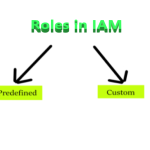
A role is a collection of permissions that determine access to GCP resources. Roles are divided into:
- Primitive Roles: Basic roles like
Owner,Editor, andViewer. These are broad and suitable for simple use cases. - Predefined Roles: Service-specific roles like
roles/storage.adminorroles/pubsub.publisher. - Custom Roles: Define your own roles when predefined ones don’t meet your needs.
|
Role |
Permissions |
|---|---|
|
Viewer |
Permissions for read-only actions like viewing existing resources. |
|
Editor |
All viewer permissions + permissions for actions that modify state , like changing existing resources. |
|
Owner |
All editor permissions + permissions for :
|
|
Browser |
|
3. Policy
In Google Cloud, an IAM policy is a document that defines access control for GCP resources. It specifies who (identity) is granted access, what level of access (role) they have, and which resources the policy applies to. IAM policies play a crucial role in enforcing security by controlling permissions at various levels within a GCP project or organization.. For example:
{
  "role": "roles/storage.viewer",
  "members": ["serviceAccount:[email protected]"]
}
Roles in IAM
A role contains a set of permissions that allows you to perform specific actions on Google Cloud resources. In simple words, a role is a named list of permissions.
Hierarchy of IAM in GCP
IAM operates at different levels within GCP. Permissions granted at a higher level cascade down to lower levels:
- Organization Level: Ideal for businesses with multiple projects. Policies set here apply across all folders and projects.
- Folder Level: Folders group related projects, such as separating
DevelopmentandProduction. - Project Level: Permissions at this level are specific to individual projects.
- Resource Level: For maximum granularity, permissions can be set on specific resources (e.g., a storage bucket or a virtual machine)
Granting an IAM Role in Google Cloud: Step-by-Step Guide
Hands-On Example: Configuring IAM for a Storage Bucket
Step 1: Create a Service Account
- Go to the IAM & Admin > Service Accounts page.
- Click + CREATE SERVICE ACCOUNT.
- Enter a name and description for the account.
- Note the service account email for later steps.
Step 2: Grant Permissions to the Service Account
- Navigate to the Cloud Storage page.
- Select the bucket you want the service account to access.
- Under the Permissions tab, click + ADD.
- Enter the service account email under “New Members.”
- Choose the predefined role Storage Object Viewer for read-only access.
Tip: Always assign the minimum necessary role to adhere to the principle of least privilege.
Step 3: Test Access
- Generate a key for the service account.
- Authenticate using the key in your application or CLI:
gcloud auth activate-service-account --key-file= gcloud storage buckets list - Verify the service account can read objects but cannot write or delete them.
Best Practices for IAM Configuration
- Follow the Principle of Least Privilege: Grant only the permissions required for a member to perform their job.
- Use Predefined or Custom Roles: Avoid primitive roles as they provide excessive permissions.
- Regularly Audit IAM Roles: Perform routine audits to ensure permissions are relevant.
- Implement Multi-Factor Authentication (MFA): Require MFA for all user accounts.
- Monitor IAM Policies: Use tools like Security Command Center.
Conclusion
Google Cloud Platform’s Identity and Access Management (IAM) is an indispensable tool for ensuring secure, scalable, and efficient access control to cloud resources. By providing robust features such as role-based access control, policy management, and detailed audit logging, GCP IAM empowers organizations to maintain security while streamlining operations.
The granular permission model allows administrators to enforce the principle of least privilege, ensuring that users, applications, and services have only the necessary permissions to perform their tasks. This reduces the attack surface and minimizes the risk of unauthorized access. The flexibility to manage roles through predefined and custom roles ensures that the access control model can adapt to both standard and unique business requirements.