

🚀 Azure App Deployment: Container Registration
🌟 Introduction
Azure Container Registry (ACR) is a secure and managed service that allows you to store and manage container images. It integrates seamlessly with other Azure services like Azure Container Instances (ACI) and Kubernetes Service (AKS), enabling efficient container deployment.
In this guide, we’ll demonstrate how to deploy a simple .NET Core App to Azure Container Registry and run it. Before starting, ensure you have the following tools installed:
- Visual Studio
- Docker Desktop
what is container registry in azure
Azure Container Registry (ACR) is a managed, private registry service provided by Microsoft Azure for storing and managing container images and other artifacts. It is fully integrated with Azure services, enabling developers and teams to build, store, secure, and deploy containerized applications easily.
- Private Container Registry:
- ACR provides a private registry for hosting container images securely.
- Supports images compliant with Docker Registry v2.
- Integration with Azure Services:
- Seamlessly integrates with Azure Kubernetes Service (AKS), Azure App Service, and other Azure compute services.
- Enables automated deployments and scaling of containerized applications.
- Support for Helm Charts and Open Container Initiative (OCI) Artifacts:
- Stores Helm charts and OCI-compliant artifacts like images and dependencies.
- Geo-Replication:
- Allows you to replicate your container images across multiple Azure regions for redundancy, high availability, and optimized access.
- Build Capabilities:
- Azure provides tasks for automated building and patching of container images directly in the registry.
- Supports base image updates for security and performance improvements.
- Security and Compliance:
- Integrated with Azure Active Directory (AAD) for access control.
- Supports network restrictions, content trust, and private endpoints.
- Offers image scanning and vulnerability assessments (using third-party tools).
- Scalability and Performance:
- ACR offers multiple service tiers (Basic, Standard, Premium) to fit different workloads.
- Provides fast, scalable performance for containerized environments.
- Tagging and Versioning:
- Supports tagging of container images for easier identification and management.
- Provides capabilities for image versioning.
Key Components:
- Registry: The container registry instance where images and artifacts are stored.
- Repository: A logical grouping within the registry for related images.
- Images: The containerized application files stored in the registry.
Integration with CI/CD Tools:
- Supports Azure DevOps, Jenkins, GitHub Actions, and other CI/CD tools for automated workflows.
azure container registry pricing
- Available in three tiers: Basic, Standard, and Premium, based on storage, throughput, and feature requirements.
For more details, check out the Azure Container Registry Documentation.
azure container registry
🛠️ Step 1: Create a .NET Core App
Begin by creating a new .NET Core Console App in Visual Studio. For this example, the app simply outputs “Hello World” to the console.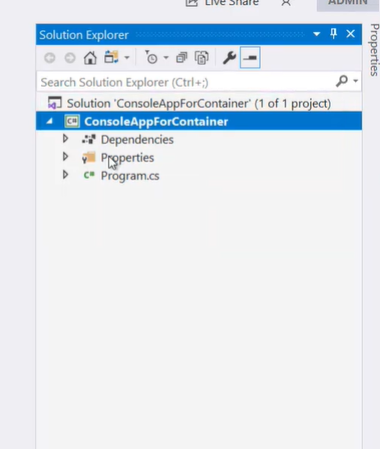
🛠️ Step 2: Add Docker Support
docker push to azure container registry
To containerize the application:
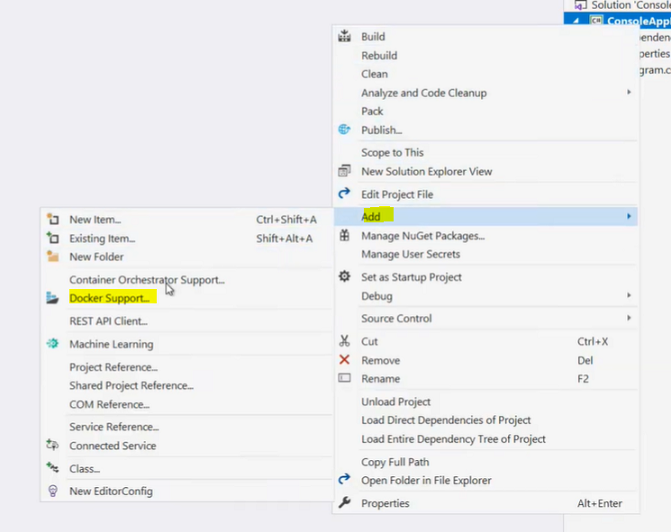
- Right-click on the project in Visual Studio.
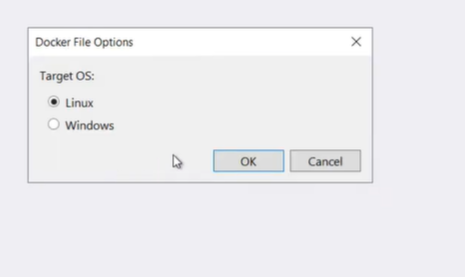
- Select Add > Docker Support and choose the Linux option.
Visual Studio generates a Dockerfile that describes how to build the container image for your application. Below is an example of a Dockerfile:
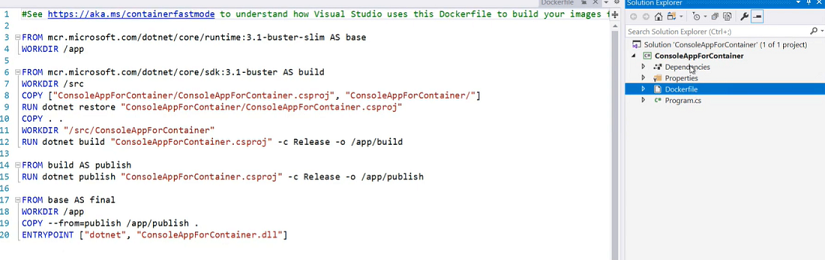 # Use the official .NET runtime image
FROM mcr.microsoft.com/dotnet/aspnet:6.0 AS base
WORKDIR /app
EXPOSE 80
# Build the application
FROM mcr.microsoft.com/dotnet/sdk:6.0 AS build
WORKDIR /src
COPY ["HelloWorldApp.csproj", "./"]
RUN dotnet restore "HelloWorldApp.csproj"
COPY . .
RUN dotnet build "HelloWorldApp.csproj" -c Release -o /app/build
# Publish the application
FROM build AS publish
RUN dotnet publish "HelloWorldApp.csproj" -c Release -o /app/publish
# Final stage
FROM base AS final
WORKDIR /app
COPY --from=publish /app/publish .
ENTRYPOINT ["dotnet", "HelloWorldApp.dll"]
# Use the official .NET runtime image
FROM mcr.microsoft.com/dotnet/aspnet:6.0 AS base
WORKDIR /app
EXPOSE 80

# Build the application
FROM mcr.microsoft.com/dotnet/sdk:6.0 AS build
WORKDIR /src
COPY ["HelloWorldApp.csproj", "./"]
RUN dotnet restore "HelloWorldApp.csproj"
COPY . .
RUN dotnet build "HelloWorldApp.csproj" -c Release -o /app/build

# Publish the application
FROM build AS publish
RUN dotnet publish "HelloWorldApp.csproj" -c Release -o /app/publish

# Final stage
FROM base AS final
WORKDIR /app
COPY --from=publish /app/publish .
ENTRYPOINT ["dotnet", "HelloWorldApp.dll"]
🛠️ Step 3: Azure App Deployment: Container Registration
- Right-click on the project in Visual Studio.
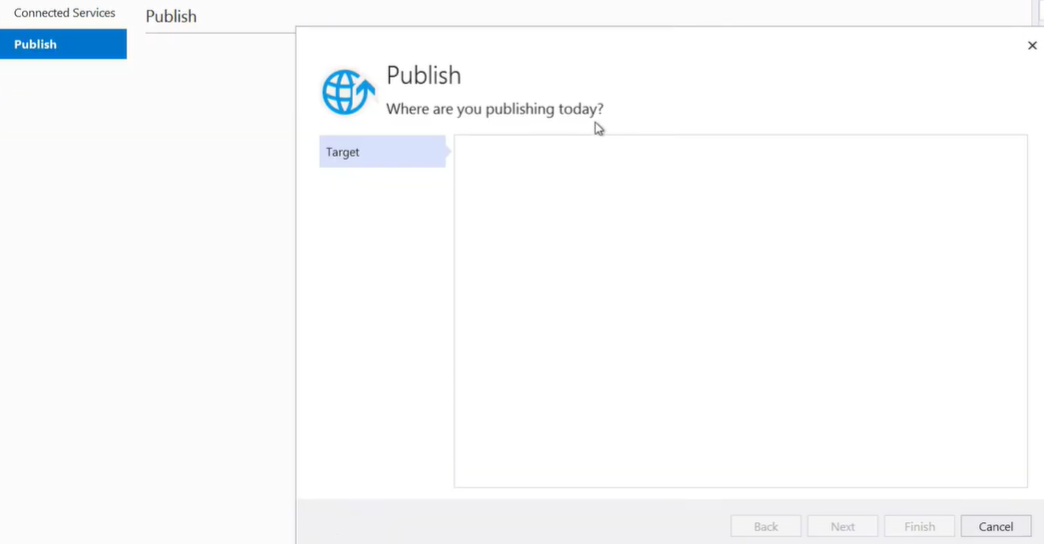
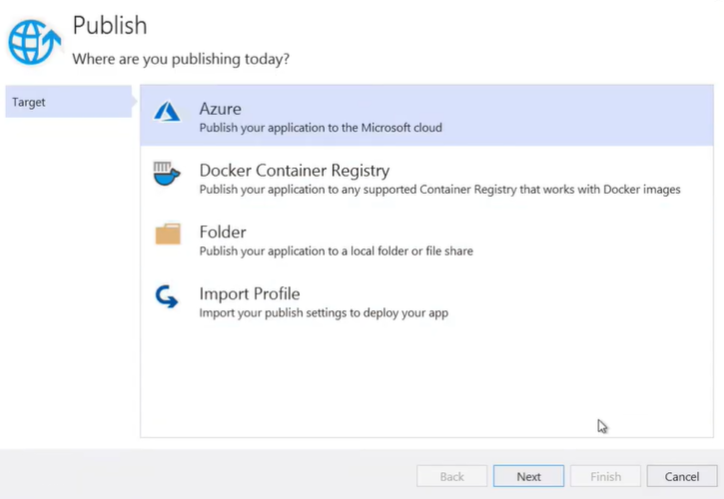
- Select Publish and choose Azure as the target.
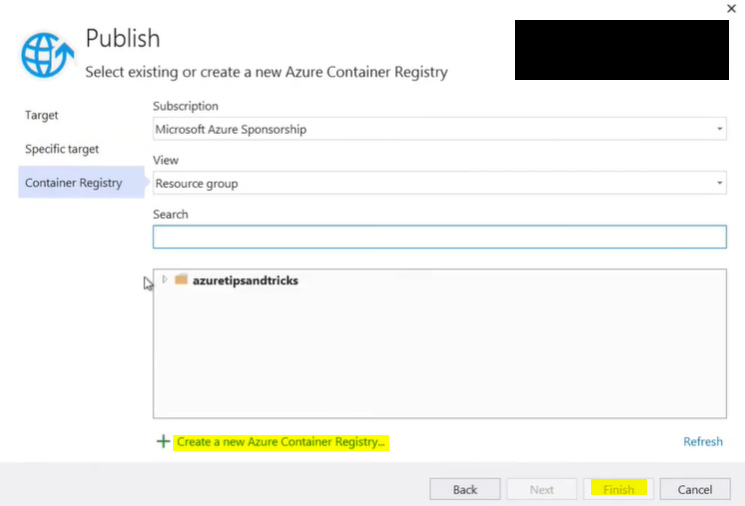
- Choose Azure Container Registry as the destination.
If you already have an Azure Container Registry, select it. If not, create a new one and then proceed with publishing.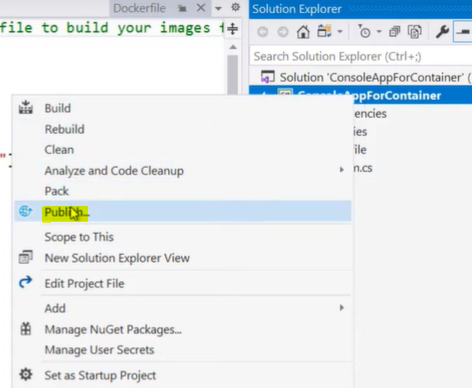
🛠️ Step 4: Verify the Azure Container Registry
Once the image is published, you can view it in the Azure Portal under the Azure Container Registry (ACR) service. Navigate to the Repositories menu to see the uploaded image.
Azure Container Registry provides additional features like:
- Task Automation: Automates builds, patches, and deployments.
- Geo-Replication: Ensures high availability across Azure regions.
🛠️ Step 5: Deploy the Container Image
You can now deploy the container image to an Azure Container Instance (ACI) or other Azure services. To deploy using ACI:
- Go to the image in the Azure Portal.
- Select Run Instance from the options.
- Provide a name for the container instance and leave the default settings.
Azure will create a container instance to run the image.
🛠️ Step 6: View the Container Logs
After deployment, navigate to the container instance in the Azure Portal. Go to the Logs section to view the output of your application. For this example, you should see the “Hello World” message displayed.
Key Features of Azure Container Registry
- Secure Storage: Azure Container Registry provides a managed, private, and secure environment to store your container images. It includes features like role-based access control (RBAC) and image encryption to enhance security.
- Geo-Replication: With geo-replication, you can replicate container images across multiple Azure regions. This ensures high availability and faster pull times for distributed teams or applications.
- Task Automation: ACR Tasks enable you to automate tasks like building, patching, and deploying container images, streamlining CI/CD workflows.
- Integration with Azure Services: ACR seamlessly integrates with Azure Kubernetes Service (AKS), Azure App Services, Azure Container Instances (ACI), and other Azure tools for easy deployment.
- Support for Multiple Formats: ACR supports Docker, OCI images, and Helm charts, allowing flexibility in how you store and deploy containerized applications.
- Content Trust and Vulnerability Scanning: ACR ensures image integrity with content trust features and provides vulnerability scanning to detect security issues in your container images.
- Scalability and Performance: Azure Container Registry scales to handle workloads of any size, ensuring consistent performance for both small and enterprise-scale applications.
Advantages of Azure Container Registry
- Enhanced Security: ACR eliminates the need for public container registries by providing a secure, managed environment with private networking and encryption.
- Cost Efficiency: ACR offers a pay-as-you-go model with multiple pricing tiers, making it suitable for businesses of all sizes.
- Global Availability: With geo-replication, ACR ensures that container images are available with low latency across different Azure regions.
- Simplified Workflows: The integration with ACR Tasks automates repetitive tasks, reducing manual effort in container image management.
- Faster Deployment: ACR integrates directly with Azure Kubernetes Service (AKS) and Azure Container Instances (ACI), enabling rapid deployment of containerized applications.
- Seamless CI/CD Integration: ACR integrates with popular DevOps tools like Azure DevOps, Jenkins, and GitHub Actions for efficient CI/CD pipelines.
Disadvantages of Azure Container Registry
- Dependency on Azure: ACR is deeply tied to the Azure ecosystem, which may limit its usability for organizations using multi-cloud or hybrid-cloud strategies.
- Cost for Advanced Features: While the basic tier is cost-effective, geo-replication, task automation, and vulnerability scanning are available only in higher pricing tiers, which may increase costs for large deployments.
- Learning Curve: For beginners, configuring advanced features like ACR Tasks, content trust, and private networking may require additional learning and expertise.
- Regional Limitations: While geo-replication is useful, it requires careful planning to avoid latency or replication conflicts across regions.
Troubleshooting Common Issues in Azure Container Registry
- Container Image Push Fails:
- Cause: Incorrect credentials or insufficient permissions.
- Solution: Ensure you are using the correct Azure Active Directory (AAD) credentials with the required RBAC roles. Use the Azure CLI to log in to the registry:
- Slow Image Pulls:
- Cause: Network latency or lack of geo-replication.
- Solution: Enable geo-replication to ensure images are available in regions closer to your application deployments.
- Image Build Failures:
- Cause: Errors in the Dockerfile or missing dependencies.
- Solution: Verify your Dockerfile syntax and ensure all required files and dependencies are present in the build context.
- Access Denied Errors:
- Cause: Misconfigured permissions or firewall settings.
- Solution: Check your registry’s role assignments and ensure that your IP or virtual network is allowed in the registry’s firewall settings.
- Image Vulnerability Detected:
- Cause: Outdated libraries or packages in the image.
- Solution: Use ACR’s vulnerability scanning feature to identify and update insecure dependencies.
- Geo-Replication Conflicts:
- Cause: Overlapping updates or misconfigured replication policies.
- Solution: Review the geo-replication configuration and ensure policies are correctly set for each region.
💡 Benefits of Azure Container Registry
- Centralized Storage: A secure and managed repository for container images.
- Seamless Integration: Works with Azure Kubernetes Service (AKS), App Services, and more.
- Automation: Simplifies tasks like image patching and deployment.
- Scalability: Handles workloads of any size with geo-replication for high availability.
🎯 Conclusion
Azure Container Registry makes it easy to store, manage, and deploy container images in a secure and scalable manner. Combined with services like Azure Container Instances, it simplifies the process of running containerized applications in the cloud.
Get started today by logging into the Azure Portal. For more advanced features and configurations, explore the official Azure Container Registry documentation.
Learn More about: Configuring Backup for Azure App Services