

Disk Storage in Azure
🌟 Introduction
Microsoft Azure Disk Storage is a high-performance block storage solution designed for Azure Virtual Machines (VMs). It supports both Windows and Linux-based applications, providing shared cloud block storage via Azure Shared Disks. Azure Disk Storage offers robust options for managing and scaling disk storage with flexibility and security.
Azure provides two main types of disks:
- Managed Disks
- Unmanaged Disks

💽 Types of azure disk storage
There are two primary disk types in Azure:
1. Managed Disks
- Simplified Management: Azure handles storage account management, reducing the overhead for users.
- Replication Mode: Supports only Locally Redundant Storage (LRS) replication.
- Scalability: Provides seamless scaling without worrying about storage account limits.
2. Unmanaged Disks
- DIY Option: Users must manage their own storage accounts, including capacity and limits (e.g., 20,000 IOPS per storage account).
- Replication Modes: Supports LRS, Zone Redundant Storage (ZRS), Geo-Redundant Storage (GRS), and Read-Access Geo-Redundant Storage (RA-GRS).
💾 Disk Storage in Azure
Azure Disk Storage offers different types of disks optimized for various workloads:
1. Standard HDD Disks
- Used for general-purpose workloads such as development and testing.
- Performance: Backed by HDD drives with a maximum throughput of 60 MB/s and 500 IOPS per disk.
- Cost: Cost-effective but lower performance compared to SSD options.
2. Standard SSD Disks
- Designed for workloads requiring consistent performance at lower IOPS levels.
- Performance: Balances cost and performance for enterprise workloads.
3. Premium SSD Disks
- Recommended for production workloads with high I/O requirements.
- Performance: Backed by SSD drives with up to 7,500 IOPS and 250 MB/s throughput.
Disk SKUs
Azure Disk SKUs cater to diverse performance and cost requirements:
- Premium SSD: High-performance and low-latency support for I/O-intensive workloads.
- Standard SSD: Affordable option for workloads needing moderate performance.
- Standard HDD: Ideal for development, testing, and less critical workloads.

⚡ Performance Tiers
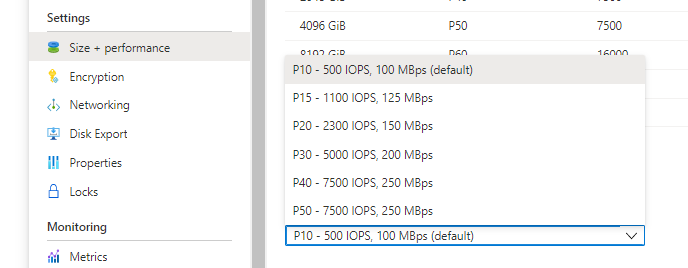
Azure Disks provide Performance Tiers, allowing you to adjust disk performance based on demand. By upgrading the performance tier, you can handle increased workloads temporarily and revert to the baseline tier later. Examples of Premium SSD tiers include:
- P10 – 500 IOPS, 100 MBps (default)
- P15 – 1100 IOPS, 125 MBps
- P20 – 2300 IOPS, 150 MBps
- P30 – 5000 IOPS, 200 MBps
- P40 – 7500 IOPS, 250 MBps
- P50 – 7500 IOPS, 250 MBps
🎯 Benefits of Managed Disks
- Managed Infrastructure: Microsoft Azure takes care of provisioning, scaling, and maintaining the underlying infrastructure.
- High Availability: Managed disks provide a guaranteed availability of 99.99%.
- Dynamic Resizing: Adjusts disk size dynamically based on workload demands.
- Cost Savings: Allows scaling up or down, reducing costs during low-demand periods.
- Automated Backups: Built-in snapshot and backup features simplify disaster recovery.
- Integration with Availability Zones: Enhances data availability and disaster recovery by replicating data across zones.
🔐 Security Features
- Azure Disk Storage employs several security measures:
- Role-Based Access Control (RBAC):
- Enforce strict access policies by assigning roles to users or groups, ensuring only authorized personnel can access data.
- Disk Encryption:
- Data is encrypted at rest using server-side encryption with Azure-managed or customer-managed keys.
- Activity Logs:
- Logs all access and operations performed on disks, enabling auditing and monitoring for suspicious activity.
- Private Endpoints:
- Secure communication between your Azure VMs and disks using private endpoints, reducing exposure to public networks.
- Monitoring and Alerts:
- Enable monitoring to detect unusual activity, such as high IOPS usage, and receive alerts to mitigate potential issues.
- Role-Based Access Control (RBAC):
🛠️ Disk Roles
Azure provides three main disk roles for Virtual Machines:
1. Data Disk
- Used for application data storage.
- Maximum capacity: 32,767 GiB.
2. Operating System Disk (OS Disk)
- Pre-installed with the OS required for the VM.
- Maximum capacity: 4,095 GiB.
3. Temporary Disk
- Stores temporary data such as page and swap files.
📈 Disk Allocation and Performance
Disk performance depends on factors like:
- Managed vs. Unmanaged Disks: Managed Disks offer better performance and reliability.
- Disk Size: Larger disks provide higher storage capacity and throughput.
- Disk I/O Operations: Performance is affected by the number of read/write operations.
- Disk Caching: Stores frequently accessed data in memory to improve performance.
Steps to Copy a Managed Disk to a Storage Account in Azure
Prerequisites:
- Azure CLI installed.
- Access to the Azure subscription and permissions to manage resources (e.g., “Owner” or “Contributor” role).
1. Create a Snapshot of the Managed Disk
First, you’ll need to create a snapshot of the managed disk that you want to copy. This snapshot will be used to export the VHD file.
# Variables
resourceGroupName="YourResourceGroup"
diskName="YourManagedDisk"
snapshotName="YourSnapshotName"

# Create the snapshot
az disk snapshot create \
  --resource-group $resourceGroupName \
  --source $diskName \
  --name $snapshotName
2. Grant Storage Account Permissions
To export the snapshot to a storage account, the storage account must allow access. You need to grant the necessary permissions to the snapshot using a shared access signature (SAS) token.
First, create a storage account if you don’t have one yet:
# Create a storage account
az storage account create \
  --name mystorageaccount \
  --resource-group $resourceGroupName \
  --sku Standard_LRS \
  --location eastus
3. Export the Snapshot to the Storage Account
You can now export the snapshot to your Azure storage account. This will provide a URL to the VHD, which can be accessed directly for further use.
# Get the storage account key
storageAccountKey=$(az storage account keys list \
  --resource-group $resourceGroupName \
  --account-name mystorageaccount \
  --query '[0].value' \
  --output tsv)

# Get the snapshot URI
snapshotUri=$(az disk snapshot show \
  --resource-group $resourceGroupName \
  --name $snapshotName \
  --query "creationData.sourceUri" \
  --output tsv)

# Export the snapshot to the storage account
az storage blob snapshot create \
  --container-name vhds \
  --name "YourVHDName.vhd" \
  --account-name mystorageaccount \
  --account-key $storageAccountKey \
  --blob-type PageBlob
4. Verify the Exported VHD
You can verify that the VHD is in the storage account by listing the blobs in the storage container:
# List the blobs in the container to check the exported VHD
az storage blob list \
  --account-name mystorageaccount \
  --container-name vhds \
  --account-key $storageAccountKey \
  --output table
If the VHD is listed, the copy was successful.
5. Download the VHD (Optional)
If you want to download the VHD to your local system, you can do so using the Azure CLI.
# Download the VHD file
az storage blob download \
  --account-name mystorageaccount \
  --container-name vhds \
  --name "YourVHDName.vhd" \
  --file "YourLocalVHDName.vhd" \
  --account-key $storageAccountKey
Notes:
- Storage Account Type: When exporting the disk to a storage account, ensure that the storage account is General-purpose v2 and supports PageBlob for storing VHD files.
- Access Control: You can alternatively use a SAS token to provide temporary access to the blob for other users or services.
By following these steps, you can effectively copy an Azure Managed Disk to a Storage Account as a VHD file.
azure temporary storage vs managed disk
- Azure Temporary Storage (VM Temporary Disk):
- Purpose: Provides fast, temporary storage for data that doesn’t need to persist across reboots (e.g., page files, caches).
- Characteristics:
- Non-persistent, data is lost if the VM is stopped or deallocated.
- Stored on the local physical disk of the host server.
- Typically used for temporary data that doesn’t need long-term storage.
- Use Case: Ideal for OS swap files or temporary files during VM runtime.
- Azure Managed Disk:
- Purpose: Persistent, durable storage for operating systems, applications, and data.
- Characteristics:
- Persistent across VM reboots and shutdowns.
- Managed by Azure, ensuring automatic replication, scaling, and high availability.
- Supports various disk types like SSDs and HDDs, with options for performance and durability.
- Use Case: Suitable for production workloads, databases, and any data requiring durability.
Performance Optimization Tips
- Choose the Right Disk Type:
- Match the disk type (HDD, standard SSD, or premium SSD) with the workload requirements.
- Use Disk Caching:
- Enable read or write caching for frequently accessed data to improve performance.
- Upgrade Performance Tiers:
- Temporarily upgrade the disk performance tier to handle periods of high demand.
- Enable Monitoring:
- Use Azure Monitor to track disk performance and optimize configurations.
- Scale Dynamically:
- Use managed disks for seamless scaling based on workload changes.
Integration With Availability Zones
Integrating the Azure storage disk which is fully managed by the Microsoft Azure with different availability zone will increases the availability of the disk. Once you crated an managed Azure storage disk it will automatically replicates the data present in the disk to multiple availability zones which will increase the availability and helps in the disaster recovery (DR).
Before creating managed azure disk you need to be do some research and select the availability zones which you want your disk to be deployed by depending up on the availability.
💰 Pricing for Azure Disk Storage
| Disk Type | Price per GB per Month |
|---|---|
| Managed Standard | $0.022 |
| Managed Premium | $0.125 |
| Managed Ultra Disk | $0.25 |
| Unmanaged Standard | $0.015 |
| Unmanaged Premium | $0.10 |
Key Features of Microsoft Azure Disk Storage
- High Availability:
- Azure Disk Storage ensures 99.99% availability for managed disks, providing reliable access to data.
- Scalability:
- Disks can scale seamlessly to meet workload demands, supporting dynamic resizing and multiple VM configurations.
- Flexible Performance Tiers:
- Azure offers performance tiers for disks, allowing users to choose between standard HDDs, standard SSDs, and premium SSDs based on workload needs.
- Integration with Azure Services:
- Fully integrated with Azure Kubernetes Service (AKS), Azure Backup, and Azure Site Recovery for a cohesive cloud ecosystem.
- Automatic Backups and Snapshots:
- Managed disks support automated backups and snapshots, simplifying disaster recovery processes.
- Encryption at Rest:
- All data is encrypted using server-side encryption, and Azure provides integration with customer-managed keys for enhanced security.
- Support for High-Performance Workloads:
- Premium and ultra disks offer low-latency and high IOPS, suitable for databases, analytics, and critical applications.
- Cross-Zone Redundancy:
- Managed disks automatically replicate data across availability zones for disaster recovery.
- Wide Range of Disk Sizes:
- Disks range from small (32 GiB) to large (32 TiB), accommodating diverse storage needs.
- Integration with Availability Zones:
- Ensures resilience by replicating data across zones within a region, reducing downtime during zone failures.
Use Cases for Azure Disk Storage
- Application Hosting:
- Use premium SSDs for hosting high-performance databases and enterprise applications like SQL Server or SAP HANA.
- Dev/Test Environments:
- Leverage standard HDDs or standard SSDs for cost-effective storage in development and testing scenarios.
- Analytics Workloads:
- Store and process large datasets with ultra SSDs, providing high throughput and low-latency access.
- Backup and Disaster Recovery:
- Utilize Azure Backup and Azure Site Recovery to create automated backups and replicate data across availability zones.
- Big Data and AI/ML:
- Store training data for machine learning models or process big data workloads with high-performance disks.
Advantages of Azure Disk Storage
- Simplicity:
- Managed disks reduce operational overhead by abstracting storage account management, making it easier to provision and manage disks.
- Cost Efficiency:
- Features like auto-scaling and flexible performance tiers ensure that users only pay for the resources they need.
- Global Availability:
- With Azure’s extensive global presence, disks are available in most regions, providing low latency for geographically distributed applications.
- Enhanced Security:
- Features like Azure RBAC, encryption, and access logs ensure secure data storage and compliance with regulatory standards.
- Optimized for Workload Diversity:
- Standard HDDs are perfect for cost-sensitive workloads, while premium SSDs and ultra disks cater to high-performance requirements.
- Reliability:
- Azure’s built-in redundancy ensures data is always available, even in the event of hardware failures.
- Automated Maintenance:
- Updates, backups, and scaling are managed by Azure, reducing manual intervention and improving efficiency.
- Supports Legacy Applications:
- Azure Disk Storage supports Windows and Linux-based VMs, making it suitable for migrating on-premises legacy systems to the cloud.
Disadvantages of Azure Disk Storage
- Cost for Premium Features:
- High-performance disks, such as premium and ultra SSDs, can be expensive for workloads with less demanding performance requirements.
- Regional Limitations:
- Some advanced features like ultra disk support may not be available in all Azure regions.
- Dependency on Azure Ecosystem:
- Azure Disk Storage is optimized for Azure services, limiting portability for hybrid or multi-cloud strategies.
- Cold Start Latency:
- Data stored in lower-tier storage (e.g., archive) may experience delayed access due to rehydration times.
- Learning Curve for Advanced Features:
- Configuring performance tiers, availability zones, and integrating with other Azure services may require technical expertise.
- Limited Customization for Managed Disks:
- While managed disks simplify operations, they offer less control over the underlying storage accounts compared to unmanaged disks.
🎯 Conclusion
Microsoft Azure Disk Storage offers flexible, scalable, and secure options for modern workloads. By understanding the differences between managed and unmanaged disks, performance tiers, and security features, businesses can optimize their cloud storage strategy.
Start exploring Azure Disk Storage today via the Azure Portal. For more information, refer to the official Azure documentation.