
Cloud Resource Monitoring
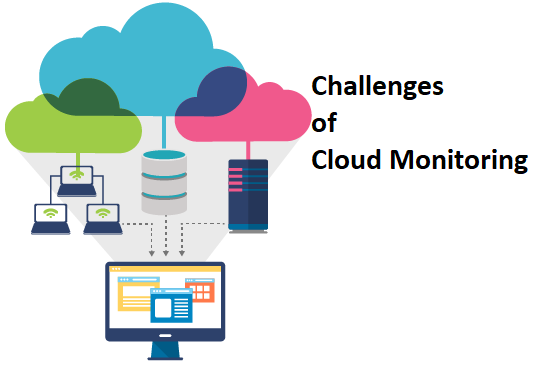
Cloud resource monitoring and optimization are essential for ensuring the efficient use of infrastructure, controlling costs, and maintaining high performance in cloud environments. Automated monitoring systems allow for real-time insights, while optimization strategies ensure the best use of resources.
This guide explores tools like AWS CloudWatch, Azure Monitor, Google Cloud Operations Suite, and Datadog for automating cloud resource monitoring. It also discusses strategies for resource optimization using Terraform, cost management tools, and scaling techniques. Hands-on examples and best practices are included.
Why Monitor and Optimize Cloud Resources?
Key Benefits
- Real-Time Insights:
- Gain visibility into system health, performance, and usage.
- Cost Control:
- Identify and reduce underutilized resources to save money.
- Performance Enhancement:
- Optimize resource allocation to meet application demands.
- Proactive Management:
- Detect and resolve issues before they impact users.
For more insights, refer to AWS Cloud Resource Management Guide.
Key Tools for Monitoring and Optimization
1. AWS CloudWatch
- Monitors AWS resources and applications in real-time.
- Provides metrics, logs, and alarms.
2. Azure Monitor
- Tracks metrics and logs for Azure resources and applications.
- Enables automated responses to performance issues.
3. Google Cloud Operations Suite
- Formerly Stackdriver, offers monitoring, logging, and tracing for Google Cloud.
4. Datadog
- A full-stack monitoring and analytics platform.
- Integrates with multiple cloud providers and on-premises systems.
Step-by-Step Guide to Monitoring and Optimization
Scenario: Monitor and optimize a cloud-based application deployed on AWS, Azure, and Google Cloud.
1. Monitoring Cloud Resources
1.1: Set Up AWS CloudWatch
- Enable CloudWatch for EC2:
aws cloudwatch put-metric-alarm --alarm-name HighCPUUsage \ --metric-name CPUUtilization --namespace AWS/EC2 --statistic Average \ --period 300 --threshold 80 --comparison-operator GreaterThanOrEqualToThreshold \ --evaluation-periods 2 --alarm-actions <SNS-topic-ARN> - Enable detailed monitoring:
aws ec2 monitor-instances --instance-ids i-0123456789abcdef0 - Access metrics:
- Navigate to CloudWatch > Metrics in the AWS Console.
- View EC2-specific metrics like CPU utilization and network traffic.
- Create a dashboard:
aws cloudwatch put-dashboard --dashboard-name ResourceDashboard \
--dashboard-body '{
    "widgets": [
        {
            "type": "metric",
            "x": 0,
            "y": 0,
            "width": 12,
            "height": 6,
            "properties": {
                "metrics": [["AWS/EC2", "CPUUtilization"]],
                "view": "timeSeries",
                "stacked": false,
                "region": "us-east-1"
            }
        }
    ]
}'
1.2: Monitor Azure Resources
- Enable Azure Monitor:
- Navigate to Monitor in the Azure Portal.
- Add metrics for resources like VMs, storage accounts, and databases.
- Create an alert rule:
az monitor metrics alert create --name HighCPUUsage \ --resource-group MyResourceGroup --scopes <resource-id> \ --condition "avg Percentage CPU > 80" --window-size 5m \ --evaluation-frequency 1m --action-group <action-group-id> - Visualize data in Workbooks:
- Use Azure Monitor Workbooks to create customized visualizations.
1.3: Monitor Google Cloud Resources
- Enable Cloud Monitoring:
gcloud services enable monitoring.googleapis.com - Create an uptime check:
gcloud monitoring uptime-checks create \ --display-name "UptimeCheck" --http-path "/" --timeout 10s --period 1m - Set up an alert policy:
gcloud monitoring policies create --display-name="High CPU Alert" \ --conditions="metric.type=\"compute.googleapis.com/instance/cpu/utilization\" AND resource.type=\"gce_instance\"" - View metrics in Cloud Console:
- Navigate to Monitoring > Metrics Explorer to view resource performance.
2. Optimizing Cloud Resources
2.1: Optimize EC2 Instances
- Use AWS Compute Optimizer:
aws compute-optimizer describe-recommendations --service ec2 - Implement right-sizing recommendations:
- Scale down over-provisioned instances or scale up under-provisioned ones.
- Automate instance scaling:
aws autoscaling create-auto-scaling-group --auto-scaling-group-name MyASG \
--launch-configuration-name MyLC --min-size 1 --max-size 5 --desired-capacity 2 \
--availability-zones "us-east-1a"
2.2: Optimize Azure Virtual Machines
- Use Azure Advisor:
- Navigate to Advisor in the Azure Portal for cost-saving recommendations.
- Implement VM resizing:
az vm resize --resource-group MyResourceGroup --name MyVM --size Standard_B1ms - Automate scaling with Azure Autoscale:
az monitor autoscale create --resource-group MyResourceGroup \
--name MyAutoscale --min-count 1 --max-count 5 \
--count 2 --resource <resource-id>
2.3: Optimize Google Cloud Compute Instances
- Use Google Cloud Recommender:
gcloud recommender recommendations list \ --project=my-project --location=global --recommender=gceInstanceMachineTypeRecommender - Apply recommendations:
gcloud compute instances set-machine-type instance-name \ --machine-type=e2-small - Automate scaling:
- Set up an autoscaler:
gcloud compute instance-groups managed set-autoscaling group-name \
--max-num-replicas 5 --min-num-replicas 1 --target-cpu-utilization 0.75
- Set up an autoscaler:
3. Unified Monitoring with Datadog
3.1: Set Up Datadog Agent
- Install the Datadog agent:
DD_AGENT_MAJOR_VERSION=7 DD_API_KEY=<api-key> DD_SITE="datadoghq.com" \ bash -c "$(curl -L https://s3.amazonaws.com/dd-agent/scripts/install_script.sh)" - Verify the installation:
sudo datadog-agent status
3.2: Monitor Multi-Cloud Environments
- Integrate AWS, Azure, and Google Cloud with Datadog:
- Use Datadog’s integrations to collect metrics from all providers.
- Create unified dashboards:
- Build dashboards to visualize performance and cost metrics across environments.
- Automate alerts:
- Set up anomaly detection alerts in Datadog for real-time issue detection.
4. Cost Optimization Techniques
4.1: Implement Lifecycle Policies
- Create S3 lifecycle rules to transition objects to cheaper storage tiers:
aws s3api put-bucket-lifecycle-configuration --bucket my-bucket \ --lifecycle-configuration file://lifecycle.json - Apply Azure storage lifecycle management:
az storage blob service-properties update --resource-group MyResourceGroup \
--account-name MyStorageAccount --delete-policy \
'{"enabled":true,"days":30}'
4.2: Use Reserved Instances
- Purchase reserved instances for predictable workloads:
aws ec2 purchase-reserved-instances-offering --reserved-instances-id <ri-id> - Apply Azure reserved VM instances:
az vm reserved-instance purchase --plan-name ReservedPlan
Best Practices
- Enable Monitoring by Default:
- Ensure monitoring is enabled for all resources upon creation.
- Tag Resources:
- Use consistent tagging for better cost and performance tracking.
- Set Alerts for Cost Thresholds:
- Implement cost alerts to avoid unexpected bills.
- Regularly Review Recommendations:
- Use tools like AWS Trusted Advisor, Azure Advisor, and Google Cloud Recommender.
- Test Optimization Changes:
- Validate resource scaling and resizing changes in staging environments.
Official Resources
Conclusion
Automating cloud resource monitoring and optimization ensures efficient resource usage, reduces costs, and enhances application performance. By leveraging tools like AWS CloudWatch, Azure Monitor, Google Cloud Operations Suite, and Datadog, you can gain actionable insights and implement proactive optimization strategies. Regular reviews and adherence to best practices will ensure sustained efficiency and reliability.