

🚀 How to Install MongoDB on Ubuntu🚀
📘 Introduction:
MongoDB is a popular document-oriented database widely used in modern web applications. Classified as a NoSQL database, it organizes data in flexible, JSON-like documents rather than traditional tables, providing schema-less capabilities for dynamic data.
🛠️ Prerequisites
- ✅ A running Ubuntu 20.04 server.
- ✅ A non-root user with administrative privileges.
- ✅ Firewall set up with UFW.
📥 Step 1 — Installing MongoDB
Ubuntu’s default repositories provide a stable version of MongoDB. However, to install the latest version (4.4), you need to add MongoDB’s official repository to your APT sources.
🔑 1. Import MongoDB GPG Key
curl -fsSL https://www.mongodb.org/static/pgp/server-4.4.asc | sudo apt-key add -
If successful, you’ll see:
OK 
📂 2. Add MongoDB Repository
echo "deb [ arch=amd64,arm64 ] https://repo.mongodb.org/apt/ubuntu focal/mongodb-org/4.4 multiverse" | sudo tee /etc/apt/sources.list.d/mongodb-org-4.4.list
This step adds the repository to APT’s sources list. Next, update the package index:
sudo apt update
📦 3. Install MongoDB
sudo apt install mongodb-org
Press Y when prompted to confirm the installation.
⚙️ Step 2 — Starting and Verifying MongoDB
▶️ Start MongoDB Service
sudo systemctl start mongod
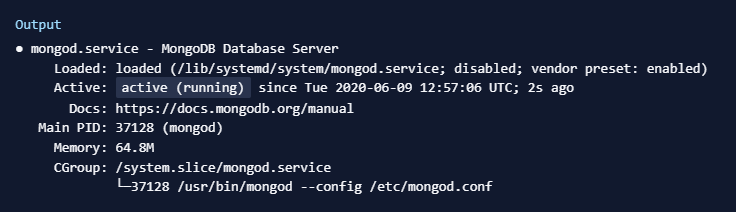
📊 Check MongoDB Service Status
sudo systemctl status mongod
🔄 Enable MongoDB to Start on Boot
sudo systemctl enable mongod
📝 Verify MongoDB with Connection Test
mongo --eval 'db.runCommand({ connectionStatus: 1 })'

🔧 Step 3 — Managing MongoDB Service
sudo systemctl stop mongod— Stop the MongoDB service.sudo systemctl start mongod— Start the MongoDB service.sudo systemctl restart mongod— Restart the MongoDB service.sudo systemctl enable mongod— Enable MongoDB to start on boot.sudo systemctl disable mongod— Disable MongoDB from starting on boot.
🎉 Conclusion
Congratulations! You have successfully installed and configured MongoDB on your Ubuntu 20.04 server. You also verified its functionality and learned how to manage it using systemd commands. MongoDB is now ready for use in your projects!